清除所有 Cookie 與站點資料
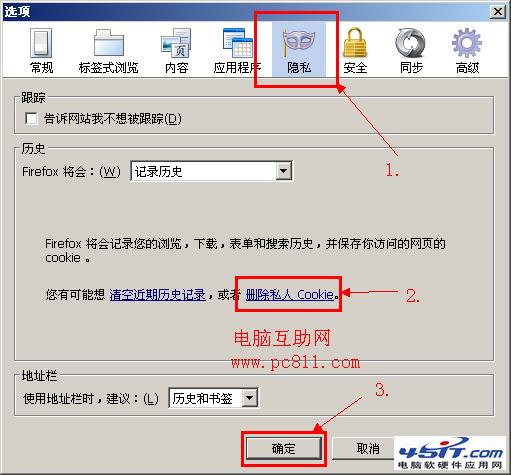
- Firefox 選單(三條線) →「選項」/「偏好設定」。
- 左側選單點選「隱私權與安全性」。
- 「Cookie 與網站資料」區域 → 點擊「清除資料...」。
- 勾選「Cookie 與網站資料」與「快取的網頁內容」 →「清除」。
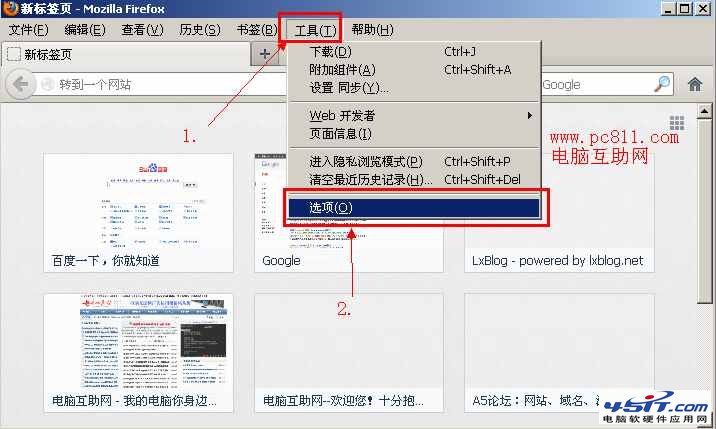
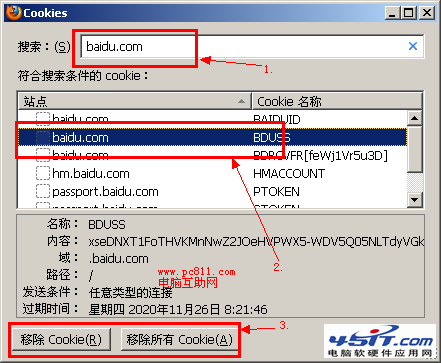
精準刪除特定網站 Cookie(人性化功能)
- 同樣進入「隱私權與安全性」→「Cookie 與網站資料」→「管理資料...」。
- 搜尋框輸入域名(如
baidu.com)。
- 列表僅顯示該域名相關 Cookie → 全選 →「移除所選」/「全部移除」。
清除已儲存的登入密碼
- 選單 →「選項」→「隱私權與安全性」→「登入密碼」區域 →「儲存的登入密碼...」。
- 搜尋/選中目標網站 →「移除」/「全部移除」。
快捷鍵
Ctrl+Shift+Del 直接開啟「清除最近的歷史記錄」視窗,勾選 Cookie/快取/登入紀錄等即可一鍵清理。