WinGate 是代理伺服器軟體鼻祖,功能強大:HTTP/MAIL/NEWS/FTP/TELNET 多協定代理、內建防火牆、支援多用戶同時上網。適合網吧、中小企業。 (下載:skycn)
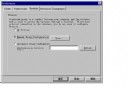
WGsetup.exe,各 Server 填入 ISP 提供設定 (SMTP: ms1.hinet.net, News: netnews.hinet.net 等),左側預設值勿動,確定完成。IP 位址: 192.168.0.1 子網遮罩: 255.255.255.0 WINS: 停用 閘道: 空白 DNS: 啟用 主機名稱: john (任意) 網域: hinet.net (ISP 網域) DNS 伺服器: 168.95.192.1 (ISP DNS) → 新增 網域尾碼: hinet.net → 新增 重開機生效
可將 wingate.exe 捷徑放入「啟動」群組,開機自動撥號 (或用其他撥號器)。
IP 位址: 192.168.0.2 (每站唯一,勿重複)
子網遮罩: 255.255.255.0
WINS: 停用
閘道: 空白
DNS: 啟用
  主機名稱: David (唯一)
  網域: 空白
  DNS 伺服器: 192.168.0.1 (指向主機) → 新增
  網域尾碼: 空白
確定離開
修改 C:\Windows\hosts 加入:
192.168.0.1 gateway
ping gateway → 有回應 = 連線正常ping ftp.microsoft.com → 第一行顯示 IP 位址 = DNS 解析正常 (後續 Destination host unreachable 為正常現象,忽略)| 軟體 | 代理設定 |
|---|---|
| Netscape Navigator | Options → Preferences → Proxies → Manual → View HTTP Proxy: gateway:80 SOCKS Proxy: gateway:1080 |
| Microsoft IE | 控制台 → Internet → 進階 → ☑ Use Proxy Server Proxy Server: https://gateway |
| WS_FTP | Options → Session Option → ☑ Use Firewall ☐ Use PASV Transfer Mode Save as default → Advanced → Firewall: gateway, Port: 21, User with no logon |
| CuteFTP | FTP → Settings → Option → Firewall Host: gateway, Port: 21 Type: USER user@site ☑ Enable Firewall |
| Telnet | telnet gateway → 出現 WinGate> 提示 → 輸入目標位址 |
| Eudora | SMTP: gateway POP3: user_id#domain@gateway (將 @ 改 #)Return Address: 完整 Email |
| Email Connection | Internet → Configure Mail Host: gateway SMTP Reply Name: gateway User ID: user_id#domainReturn Address: 完整 Email |
| News Reader | NNTP Server: gateway |
關鍵提醒: 所有郵件軟體的 User ID 中 @ 必須改為 #,否則 WinGate 無法正確路由。Return Address 必填,否則對方無法回信。
WinGate 以強大的多協定代理能力聞名,核心在於:主機雙網卡 (撥號+區網)、TCP/IP 精細規劃、DNS 指向主機、hosts 定義 gateway、各客戶端按協定設定代理。雖硬體路由器已大幅取代,但其「應用層代理 + 防火牆 + 審計」一體化架構思想,仍是理解現代 Secure Web Gateway (SWG) 的基石。