本文記錄在 RedHat Enterprise Linux 5 上安裝、配置 VNC 服務的完整步驟,包含密碼設置、啟動腳本調整、服務配置、防火牆規則及常見問題排查。
rpm -qa vnc-server  # 檢查是否已安裝
yum install vnc-server  # 未安裝時安裝
執行 vncserver 會提示輸入兩次密碼,並自動生成 ~/.vnc/xstartup 啟動腳本與日志文件。
~/.vnc/xstartup#!/bin/sh unset SESSION_MANAGER exec /etc/X11/xinit/xinitrc [ -x /etc/vnc/xstartup ] && exec /etc/vnc/xstartup [ -r $HOME/.Xresources ] && xrdb $HOME/.Xresources xsetroot -solid grey vncconfig -iconic & xterm -geometry 80x24+10+10 -ls -title "$VNCDESKTOP Desktop" & # twm & gnome-session &
/etc/sysconfig/vncserversVNCSERVERS="1:root" VNCSERVERARGS[1]="-geometry 1024x768 -nolisten tcp -nohttpd -localhost"
指定顯示編號 :1 由 root 用戶運行,分辨率 1024x768,禁用 TCP 監聽與 HTTP 介面,僅允許本地連接(需配合 SSH 隧道)。
可選關閉防火牆或開放端口:
service iptables stop
# 或開放端口
/sbin/iptables -I INPUT -p tcp --dport 5801 -j ACCEPT
/sbin/iptables -I INPUT -p tcp --dport 5900:5903 -j ACCEPT
/etc/rc.d/init.d/iptables save
/etc/init.d/iptables restart
vncserver -kill :1  # 終止現有進程
vncserver           # 重新啟動
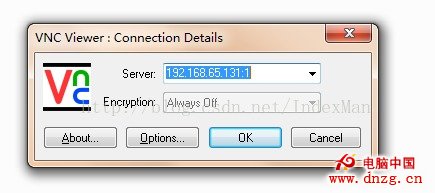
https://ServerIP:5801/ServerIP:1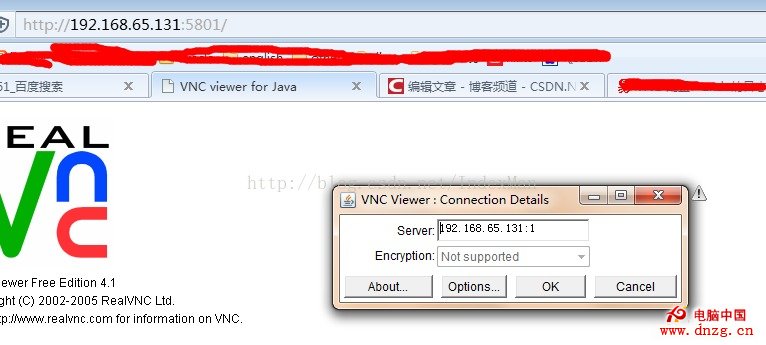
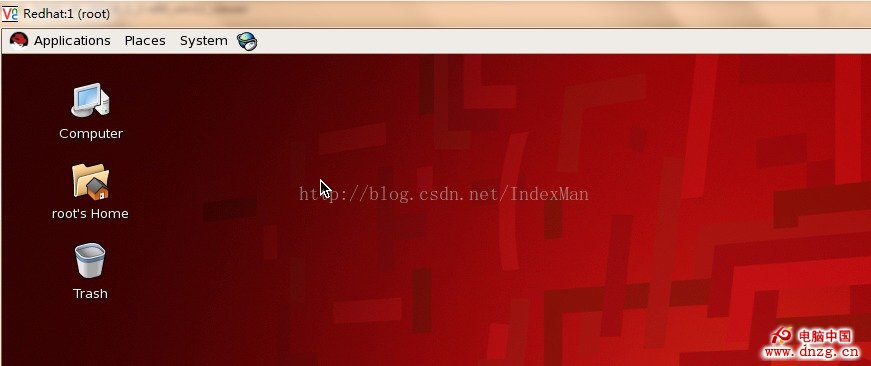
原因: 用戶 ~/.vnc/xstartup 權限不正確。
解決: chmod 755 ~/.vnc/xstartup
原因: VNC Server 與 Viewer 端輸入法/語言環境不一致。
解決: 在 Viewer 端切換至英文輸入法。