作者長期從事企業桌面支援,整理高頻故障與最小成本解法。重灌系統耗時費力,掌握以下技巧,10 分鐘內搞定常見災情,資料零遺失。
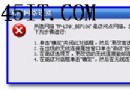
現象:彈出「explorer.exe 產生錯誤」視窗,點確定後桌面重生,但多程式失常。
根因:使用者設定檔損毀。
解法:重建使用者設定檔
C:\Documents and Settings\ralph(ralph 為原帳號)更名為 ralph1。ralph 資料夾,故障排除。資料遷移(關鍵步驟):
ralph1\Favorites → 複製覆蓋至新 ralph\Favoritesralph1\桌面 內容 → 複製至新 ralph\桌面ralph1\Local Settings\Application Data\Microsoft\Outlook → 複製至同路徑ralph1\Local Settings\Application Data\Identities\{Identity號}\Microsoft\Outlook Express → 複製至新帳號對應 Identity 資料夾ralph1\Application Data\Microsoft\Address Book → 複製至同路徑regedit → HKEY_CURRENT_USER\Identities\{Identity號} → 將 Identity 號改為新帳號的 Identity 資料夾名稱提示:Identity 資料夾名稱在 C:\Documents and Settings\Administrator\Local Settings\Application Data\Identities 下唯一,不會搞錯。
全程約 10 分鐘,比重灌快十倍,資料完整保留。
解法:工具 → 選項 → 取消勾選「內嵌語音資料」。
未修補的 Office 會產生大量無錯誤訊息的詭異問題,難以診斷。Windows Update 或 Office 官網下載最新 Service Pack 與安全性更新,能預防 90% 以上怪異錯誤。