操作不當、斷電、病毒、頻繁安裝/移除程式皆可能導致系統檔案遺失/損壞。錯誤提示通常會給出檔名與路徑,修復相對簡單。
錯誤:「Windows 找不到檔案 'C:\Windows\system32\Rundll32.exe'」。
修復:
expand x:\i386\rundll32.ex_ c:\windows\system32\rundll32.exe (x 為光碟代號)。
圖 1 Rundll32.exe 遺失錯誤提示
DLL 多存放於 Windows\System32,共用特性易被誤刪或錯誤修改。修復順序:
I386 尋找同名檔 (或 .dl_ 壓縮檔用 expand 解壓) 複製至 System32。https://search.microsoft.com/...) 以檔名搜尋,依提示下載相關安裝程式 (如 Vcredist.exe 含 MFC42u.DLL) 取得檔案。小提醒:部分 DLL 複製後需註冊:regsvr32 c:\windows\system32\abc.dll。

圖 2 MFC42u.DLL 遺失錯誤提示
錯誤視窗僅顯示 CLSID (如 {8FC0B734-A0E1-11D1-A7D3-0000F87571E3}),不給檔名。解決:
regedit → 編輯 → 尋找 → 輸入 CLSID。InProcServer32 項,右側雙擊「預設值」。%SystemRoot%\System32\GPEdit.dll)。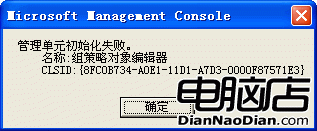
圖 3 管理單元初始化失敗提示 (含 CLSID)
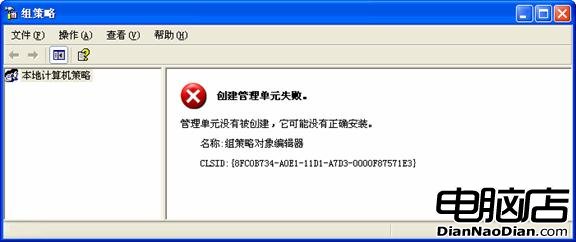
圖 4 確定後彈出的檔案遺失詳細資訊
Windows Server 管理實戰技巧:拒絕重啟、多帳號同登、遠端查詢日誌
Windows XP 開機卡在「Windows 正在啟動」畫面的解決方法
Windows XP/Vista「回收站已損壞」一鍵修復:命令列與格式化雙方案
Windows XP 資料夾權限設定三步驟:停用簡單檔案共享、安全性頁籤指定使用者存取權限
Windows For 命令妙用 4 例:批次加落款、產生檔案清單、刪除空資料夾、掃描區網 IP 對應主機名
Windows XP 硬碟圖示變成白紙?刪除 autorun.inf 與修復圖示快取解決