應用場景
企業電腦、網咖、學校機房、共用電腦等環境,需防止使用者隨意安裝軟體、執行未授權程式,確保系統穩定與資安。
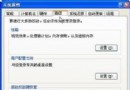
核心工具:群組原則編輯器 (gpedit.msc)
注意:Windows XP Home Edition 不支援 gpedit.msc,需 Professional 版以上。
設定步驟
1. 禁止 Windows Installer(封鎖 .msi 安裝檔)
- Win+R → 輸入
gpedit.msc → Enter。
- 依序展開:
電腦設定 → 管理範本 → Windows 元件 → Windows Installer
- 雙擊右側 「關閉 Windows Installer」 → 選「已啟用」 → 「確定」。
- 同目錄下啟用 「禁止使用者安裝」,同樣設為「已啟用」。
2. 停用「加入/移除程式」控制台項目
- 展開:
使用者設定 → 管理範本 → 控制台
- 雙擊 「隱藏『加入/移除程式』」 → 「已啟用」 → 「確定」。
3. 只允許執行指定程式(白名單機制)
- 展開:
使用者設定 → 管理範本 → 系統
- 雙擊 「只執行允許的 Windows 應用程式」 → 「已啟用」。
- 點擊「顯示」按鈕,在「允許的應用程式清單」中逐一加入允許執行的執行檔名稱(如
notepad.exe、iexplore.exe、winword.exe 等)。
- 確定離開。
4. 進階:移除使用者安裝軟體的使用者權限(針對非 MSI 類安裝程式)
- 在
gpedit.msc 中展開:
電腦設定 → Windows 設定 → 安全性設定 → 本機原則 → 使用者權利指派
- 找到 「安裝軟體」(或相關權利),移除所有使用者/群組,僅保留 Administrators。
重要限制與繞過風險
- 群組原則僅對「受管理使用者」生效。若使用者知道
gpedit.msc 且擁有本機管理員權限,可自行關閉限制。
- 真正徹底管控需結合:一般使用者帳號(非管理員)+ 群組原則 + 軟體限制原則 + 防火牆/防毒集中管理。
- 對於極高安全需求環境,建議部署 Active Directory 網域群組原則,而非單機本機原則。
總結
透過 gpedit.msc 設定「關閉 Windows Installer」、「隱藏加入/移除程式」、「只允許執行白名單程式」,可有效阻擋 90% 以上的非授權軟體安裝與執行。搭配一般使用者帳號使用,安全性更高。記住:權限最小化原則是資安基石。