安裝/移除程式時出現「無法存取 Windows Installer 服務」,服務管理員中服務呈現「停用」且無法啟動,甚至標記為刪除。常見原因:
installer_fix.reg,內容如下:Windows Registry Editor Version 5.00
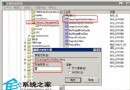
[HKEY_LOCAL_MACHINE\SYSTEM\CurrentControlSet\Services\MSIServer]
"ImagePath"=hex(2):25,00,53,00,79,00,73,00,74,00,65,00,6d,00,52,00,6f,00,6f,00,74,00,25,00,5c,00,53,00,79,00,73,00,74,00,65,00,6d,00,33,00,32,00,5c,00,6d,00,73,00,69,00,65,00,78,00,65,00,63,00,2e,00,65,00,78,00,65,00,20,00,2f,00,56,00,00,00
; 解碼後為:%SystemRoot%\System32\msiexec.exe /V
msiexec /regserver 按 Enter。msiexec /unregserver 先移除現有註冊。InstMsiW.exe(Microsoft 官網)。msi.inf → 安裝;右鍵 mspatcha.inf → 安裝。msiexec /regserver 重新註冊服務。⚠ 過程中勿重開機;若安裝瑞星防火牆,建議暫時關閉。
MSIServer 依賴 RPCSS (Remote Procedure Call) 與 DcomLaunch,確認兩者均為「執行中」。HKLM\SYSTEM\CurrentControlSet\Services\MSIServer 權限:SYSTEM、Administrators 需具備完整控制權。msiexec 無參數,應彈出 Windows Installer 版本/語法視窗。services.msc 中 Windows Installer 狀態應為「手動」,啟動類型正常。sfc /scannow 維護系統檔案完整性。Windows Installer 服務異常多由登錄鍵值遺失引起,匯入正確 ImagePath 並執行 msiexec /regserver 即可 90% 以上情況秒修復。Win2000 需額外重裝 INF,步驟稍繁但同樣有效。