Windows XP Windows 7 Windows 2003 Windows Vista Windows 綜合教學 Linux 系統教學
Windows 10 Windows 8 Windows 2008 Windows NT Windows Server 電腦軟體教學

WinPE 安裝至隱藏分區完整教學:磁碟分區、Grub4DOS 引導、系統修復環境建構

編輯:Windows XP 系統介紹

將 Windows PE (WinPE) 安裝至硬碟隱藏分區,能在系統崩潰、中毒、無法開機時,無需外部 USB 即可進入維護環境備份資料、修復啟動、掃毒、重置密碼。本文詳細記錄分區規劃、格式化、Grub4DOS 引導安裝、WinPE 部署、選單配置的標準化流程。

架構設計原則

  • 隱藏分區: 無磁碟機代號、不掛載至 Windows 命名空間、病毒/誤刪難觸及。
  • 主分區 (Primary): 僅主分區可被 BIOS/UEFI 直接啟動 (Grub4DOS 安裝至 MBR/VBR 需主分區)。
  • 最小化大小: WinPE 精簡版 300-500MB,建議分區 1-2GB (FAT32/NTFS) 預留擴充空間。
  • 獨立性: 不依賴系統分區檔案、註冊表、驅動,純淨維護環境。

工具準備

  • DiskGenius (分區管理、隱藏屬性設定)
  • Grub4DOS (grubinst_gui.exe, grldr, menu.lst)
  • WinPE ISO/映像 (微PE、伏羲、Win10PE、自製精簡版,建議 x64 支援 UEFI/Legacy 雙啟動)
  • 7-Zip (解壓 ISO)

步驟一:建立隱藏主分區 (以 DiskGenius 為例)

  1. 備份目標硬碟末尾分區資料 (如 E:)。
  2. DiskGenius → 右鍵 E: →「刪除當前分區」。
  3. 右鍵未配置空間 →「建立新分區」→ 大小設為 2048MB (2GB) → 檔案系統 NTFS → 分區型別「主分區」→ 確定。
  4. 右鍵新分區 →「變更分區參數」→ 勾選「隱藏分區」→ 確定 (分區標誌變為 0x17/0x07 隱藏標誌)。
  5. 工具列「套用變更」→ 執行。
  6. 右鍵新分區 →「格式化當前分區」→ 確定。
  7. 剩餘未配置空間 → 右鍵 →「建立新分區」→ 恢復原 E: 大小 → 格式化 → 設為主分區 (如需啟動) 或邏輯分區 (僅存儲)。

驗證: Windows「磁碟管理」 (diskmgmt.msc) 中該分區顯示「健康 (隱藏)」,無磁碟機代號,大小正確。

步驟二:安裝 Grub4DOS 至 MBR 並建立開機選單

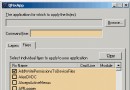
  1. 解壓 Grub4DOS,執行 grubinst_gui.exe (管理員)。
  2. 「Disk」下拉選擇目標實體磁碟 (如 (hd0) [41863MB])。
  3. 「Partition List」→「Refresh」→ 選擇「Whole disk (MBR)」。
  4. 勾選:「Don't search floppy」、「Prefer booting original MBR」。
  5. 「Timeout」設 3-5 秒,「Hotkey」設 F9 (或 F11/F12)。
  6. 點擊「Install」→ 彈出 DOS 視窗按 Enter 確認寫入 MBR。

步驟三:部署 WinPE 至隱藏分區

  1. 掛載/解壓 WinPE ISO (7-Zip 開啟 ISO → 拖出全部檔案至隱藏分區根目錄)。
    關鍵檔案結構:
    HIDDEN:\boot\ (BCD, boot.sdi, memtest.exe)
    HIDDEN:\sources\boot.wim (核心映像)
    HIDDEN:\bootmgr (UEFI/Legacy 啟動管理程式)
    HIDDEN:\EFI\Microsoft\Boot\ (UEFI 啟動檔)
  2. 若 WinPE 為單一 boot.wim (無 bootmgr/BCD),需手動建立 BCD:
    管理員命令提示字元:
    bcdedit /createstore HIDDEN:\boot\BCD
    bcdedit /store HIDDEN:\boot\BCD /create {ramdiskoptions} /d "Ramdisk Options"
    bcdedit /store HIDDEN:\boot\BCD /set {ramdiskoptions} ramdisksdidevice boot
    bcdedit /store HIDDEN:\boot\BCD /set {ramdiskoptions} ramdisksdipath \boot\boot.sdi
    bcdedit /store HIDDEN:\boot\BCD /create /d "WinPE Maintenance" /application osloader → 產生 GUID →
    bcdedit /store HIDDEN:\boot\BCD /set {GUID} device ramdisk=[boot]\sources\boot.wim,{ramdiskoptions}
    bcdedit /store HIDDEN:\boot\BCD /set {GUID} path \windows\system32\winload.efi (UEFI) 或 winload.exe (Legacy)
    bcdedit /store HIDDEN:\boot\BCD /set {GUID} osdevice ramdisk=[boot]\sources\boot.wim,{ramdiskoptions}
    bcdedit /store HIDDEN:\boot\BCD /set {GUID} systemroot \windows
    bcdedit /store HIDDEN:\boot\BCD /set {GUID} detecthal yes
    bcdedit /store HIDDEN:\boot\BCD /set {GUID} winpe yes
    bcdedit /store HIDDEN:\boot\BCD /displayorder {GUID} /addlast

步驟四:配置 Grub4DOS menu.lst 選單

在隱藏分區根目錄建立/編輯 menu.lst:

timeout 3
default 0
gfxmenu /boot/gfxmenu (可選圖形選單)

title Windows PE Maintenance Environment
find --set-root /bootmgr
chainloader /bootmgr

title Windows 7/10/11 Installation (ISO)
find --set-root /ISOs/Win10_x64.iso
map /ISOs/Win10_x64.iso (0xff)
map --hook
chainloader (0xff)

title MemTest86+ Memory Test
find --set-root /boot/memtest.exe
kernel /boot/memtest.exe

title Hard Disk Tools (MHDD, Victoria, HDAT2)
find --set-root /tools/hddtools.img
map --mem /tools/hddtools.img (fd0)
map --hook
chainloader (fd0)+1
rootnoverify (fd0)

title Reboot
reboot

title Shutdown
halt

步驟五:驗證與維護

  1. 重啟電腦,開機時按 F9 (或設定熱鍵) 進入 Grub4DOS 選單。
  2. 選擇「Windows PE Maintenance Environment」→ 載入 bootmgr → BCD → boot.wim → 進入 WinPE 桌面。
  3. 驗證核心功能:
    - 掛載系統盤 (C:) 讀寫正常
    - 網路連線 (有線/無線驅動載入)
    - 備份工具 (Dism++, CGI, Ghost) 運行
    - 掃毒工具 (微PE 內建/攜帶掃毒包) 更新病毒碼掃描
    - 修復啟動 (bootrec, bcdedit, WinNTSetup)
    - 密碼重置 (NTPWEdit, chntpw)
  4. 定期更新:
    - 替換 sources\boot.wim 為新版 WinPE
    - 更新 menu.lst 新增工具/ISO
    - 更新 Grub4DOS 版本 (修正 UEFI 相容性)

UEFI 電腦額外配置 (關鍵)

  1. 隱藏分區必須格式化為 FAT32 (UEFI 要求),或在隱藏分區建立 100MB FAT32 ESP 分區專放 UEFI 啟動檔。
  2. Grub4DOS 僅支援 Legacy/CSM 啟動。UEFI 原生啟動需:
    - 將 WinPE 的 EFI\Microsoft\Boot\bootmgfw.efi 複製至系統 ESP 分區 (通常 100-500MB FAT32) 對應位置。
    - 使用 bcdedit /set {bootmgr} path \EFI\Microsoft\Boot\bootmgfw.efi 註冊。
    - 或使用 rEFInd/refind.conf 管理多重 UEFI 啟動項 (含隱藏分區 WinPE)。
  3. BIOS 設定:啟用 CSM (Compatibility Support Module) 可同時支援 Legacy Grub4DOS 與 UEFI 選單。

安全與管理建議

  • 隱藏分區設唯讀屬性 (DiskGenius →「變更分區參數」→「唯讀」) 防止誤寫,維護時暫時移除。
  • Grub4DOS 選單加密:password --md5 $1$xxxx (menu.lst 首行) 防止未授權進入維護模式。
  • 記錄分區佈局、GUID、BCD 設定至文檔,變更留痕。
  • 企業環境:將隱藏分區 WinPE 納入資產管理基線,定期巡檢可用性。

硬碟隱藏分區 WinPE 是「隨身維護站」的終極形態:零外部媒體依賴、病毒難感染、開機熱鍵直達、工具鏈完整。遵循「隱藏主分區 + Grub4DOS MBR + BCD/boot.wim + menu.lst」標準化建構,配合 UEFI 相容配置,即可為任何 Windows 電腦配置企業級離線維護能力。建議每季度驗證一次啟動與核心功能,確保關鍵時刻「叫得醒、用得上、救得回」。

Copyright © Windows教程網 All Rights Reserved