Windows XP Windows 7 Windows 2003 Windows Vista Windows 綜合教學 Linux 系統教學
Windows 10 Windows 8 Windows 2008 Windows NT Windows Server 電腦軟體教學

WinXP 登錄檔被禁用怎麼解禁?六大方法:工具軟體、reg 命令、.inf 檔、群組原則、第三方編輯器、其他使用者身分

編輯:Windows XP 系統介紹

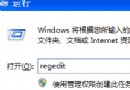
惡意程式/群組原則常禁用登錄編輯器(regedit),顯示「登錄編輯已被系統管理員停用」。提供六種解禁方案,依環境選用。

方法一:優化大師/超級兔子等工具軟體(最簡單)

安裝後尋找「登錄檔鎖定/解鎖」功能,一鍵解禁。

方法二:reg 命令直接刪除限制鍵值(適用 XP)

reg delete hkcu\software\microsoft\windows\currentversion\policies\system /v disableregistrytools /f

方法三:.inf 安裝檔刪除限制(適用 XP 以上)

  1. 建立文字檔 unlock_reg.inf,內容:
[Version]
Signature="$CHICAGO$"
[DefaultInstall]
Delreg=Del
[Del]
HKCU,SOFTWARE\Microsoft\Windows\CurrentVersion\Policies\System,DisableRegistryTools
  1. 右鍵該檔 →「安裝」。

方法四:群組原則(適用 XP Professional/2000)

  1. Win + R → gpedit.msc。
  2. 「使用者設定」→「系統管理範本」→「系統」→「停用登錄編輯工具」→ 設為「未設定」或「停用」。

方法五:第三方登錄編輯器繞過限制(Registry Workshop、Reg Organizer 等)

  1. 開啟第三方編輯器,定位 HKEY_CURRENT_USER\Software\Microsoft\Windows\CurrentVersion\Policies\System。
  2. 刪除 DisableRegistryTools 值。

方法六:以其他管理員身分載入使用者配置單元修改(繁瑣,作參考)

  1. 以 Administrator 登入 → regedit → HKEY_USERS 右鍵 →「載入配置單元」→ 選取目標使用者 NTUSER.DAT。
  2. 在載入的分支刪除 DisableRegistryTools →「卸載配置單元」。

登錄檔被禁用提示

解禁後必做:立即全盤掃毒、檢查群組原則異常、備份重要資料。若無法解決,重灌系統最徹底。

Copyright © Windows教程網 All Rights Reserved