惡意程式、錯誤更新、硬碟壞軌皆可能損毀系統檔案。Vista 內建 sfc.exe (System File Checker) 可掃描並自動修復受保護系統檔案,無需重開機進入修復環境。
| 參數 | 功能 | 適用場景 |
|---|---|---|
/scannow | 掃描所有受保護系統檔案完整性,自動以快取副本修復損毀檔案 | 最常用、首選修復指令 |
/verifyonly | 僅掃描回報,不自動修復 | 審計、確認問題範圍 |
/scanfile=<完整路徑> | 掃描指定單一檔案,損毀則修復 | 懷疑特定檔案 (如 kernel32.dll) 異常 |
/verifyfile=<完整路徑> | 僅驗證指定檔案,不修復 | 檢查特定檔案狀態 |
/offbootdir=<磁碟機> /offwindir=<Windows目錄> | 離線修復模式:指定啟動磁碟與 Windows 目錄 (WinPE/修復環境用) | 無法開機時從安裝光碟修復環境執行 |
cmd → Ctrl+Shift+Enter)。sfc /scannow%windir%\Logs\CBS\CBS.log (搜尋 [SR] 關鍵字)。DISM /Online /Cleanup-Image /RestoreHealth,Vista 需安裝 DISM 套件)。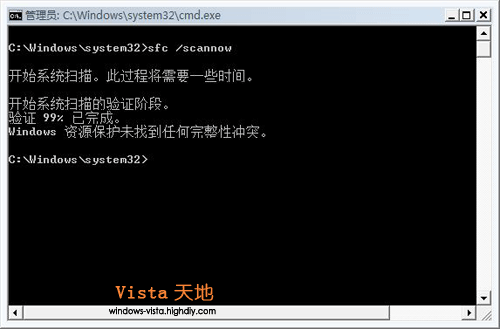
findstr /c:"[SR]" %windir%\Logs\CBS\CBS.log > "%userprofile%\Desktop\sfc_log.txt"
開啟產出的 sfc_log.txt,每筆記錄含檔案路徑、雜湊比對結果、修復動作 (已修復/無法修復/已忽略)。
/scannow、/scanonce、/scanboot、/revert、/purgecache、/cachesize。/verifyonly、/scanfile、/verifyfile、/offbootdir、/offwindir,功能更細緻、支援離線修復。sfc /scannow 是系統維護的「萬用藥」,建議每月執行一次、安裝大型更新後必跑、懷疑中毒優先跑。配合 CBS 日誌分析,能精準掌握系統健康狀態。
雙系統開機選單消失?啟動等待時間設定過短導致,30 秒找回選單
一鍵產出 Windows Vista 系統健康報告,掌握電腦完整狀態
一行指令解決 Vista/Win7 下 MSI 安裝包「無法存取 Windows Installer 服務」錯誤
深入理解 Windows Vista IE 保護模式與跨安全區域導航問題
筆記型電腦 Vista 免費升級 Windows 7 官方管道完整指南:禮券驗證、註冊費用、版本對應與截止日期
IE7 瀏覽 HTTPS 網站提示「安全性憑證有問題」解決:匯入信任根憑證