Win7 系統每次開機後桌面總會彈出「Adobe Flash Player 自動更新」視窗,不僅干擾視線,還會明顯拖慢開機速度。透過控制台中的 Flash Player 設定即可永久關閉此自動更新提示,需要更新時再手動操作即可。
步驟 1:開啟控制台
點擊「開始」選單,選擇「控制台」→「系統與安全性」。
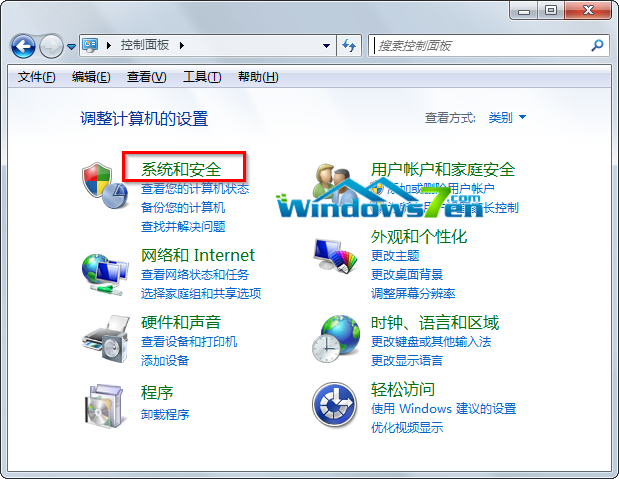
圖 1 進入控制台的「系統與安全性」
步驟 2:找到 Flash Player 設定
在「系統與安全性」視窗最底部,找到並點擊「Flash Player (32 位元)」(64 位元系統會顯示 64 位元)。
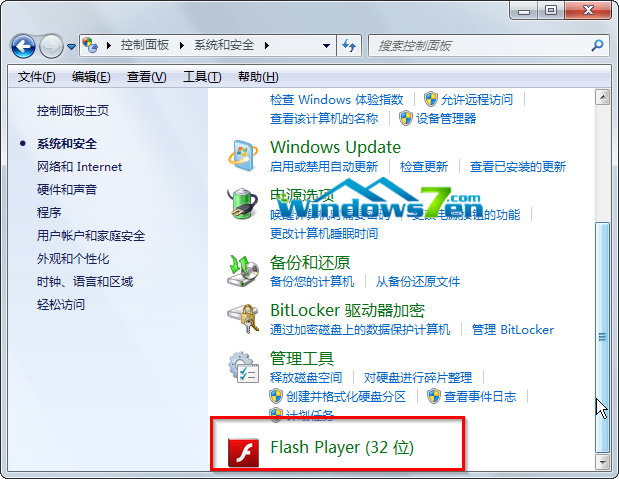
圖 2 點擊「Flash Player (32 位元)」
步驟 3:關閉自動更新
在彈出的「Flash Player 設定管理員」視窗中,切換到「進階」索引標籤,於「更新」區塊選擇「從不檢查更新」,最後按下「確定」儲存設定。
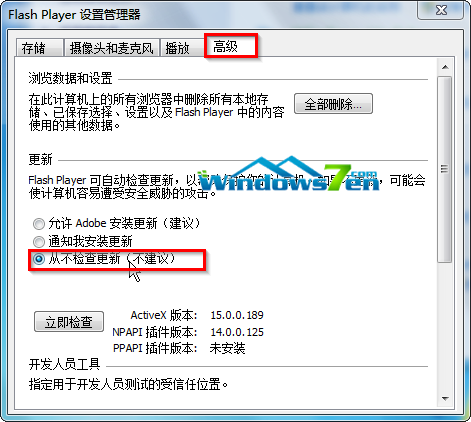
圖 3 選擇「從不檢查更新」
設定完成後,開機時不再彈出 Flash Player 更新提示。若未來需要更新,可手動前往 Adobe 官網下載最新版安裝。
Windows 10 創作者更新 Build 14986 官方 ISO 鏡像發布:含家用/專業/教育/企業版,支援乾淨安裝
Win8 系統解析度怎麼調?右上角魅力列 → 設定 → 更多電腦設定 → 電腦與裝置 → 顯示器調整
360 安全衛士升級 Win10 卡在「正在獲取更新」?停用 Windows Update 服務後再試
Windows 10 Mobile Build 10134 執行畫面曝光:UI 細節大幅優化
Win10 突破解析度底線:可在 1024×600 上網本運行,Win8.1 門檻為 1024×768