Win8.1 雙擊 .chm 說明檔/電子書顯示「無法顯示此頁」,常見三大原因:檔案被封鎖、路徑含 # 號、檔案關聯錯誤。三種解法對應不同成因。
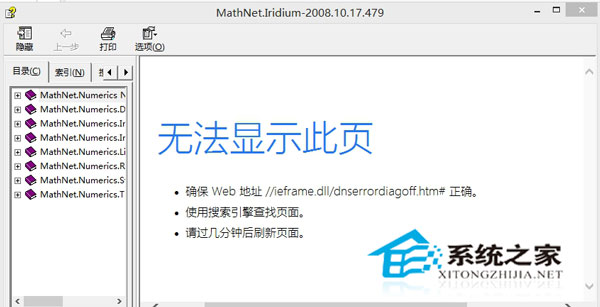
現象
錯誤頁面顯示:無法顯示此頁 確保 Web 位址 //ieframe.dll/dnserrordiagoff.htm# 正確...
解決方案
- 解除封鎖 (最常見):右鍵 .chm 檔 → 「內容」→ 底部「安全性」區 → 勾選「解除封鎖」→ 確定。Windows 為保護會封鎖從網路下載/附件的 CHM 檔。
- 移除路徑中的 # 號:若檔案放在含 # 的資料夾 (如
C:\C#\book.chm) → 將資料夾重新命名移除 # (如 C:\CSharp\)。
- 壓縮包中開啟:若必須放在含 # 路徑 → 右鍵 .chm → 「加入壓縮檔」→ 在壓縮軟體 (WinRAR/7-Zip) 中雙擊開啟 .chm,繞過路徑限制。
補充說明
- CHM (Compiled HTML Help) 廣泛用於軟體說明、技術電子書、小說漫畫。
- Win10/11 同理適用上述解法。
- 若頻繁閱讀 CHM,建議使用專用閱讀器 (如 xCHM、CHM Reader、SumatraPDF) 體驗更佳。