Windows 10 鎖定畫面支援豐富的壁紙自訂,從系統精選圖片到個人相片皆可設定,操作路徑為「設定 → 個人化 → 鎖定畫面」。
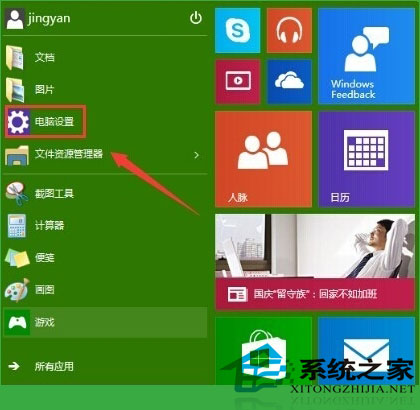
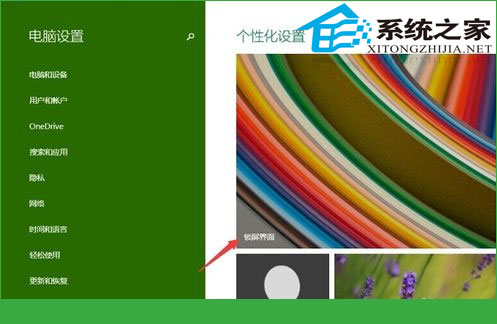
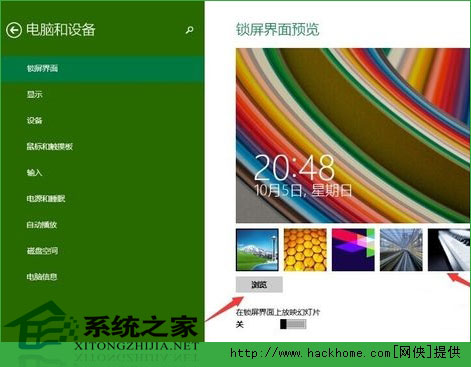
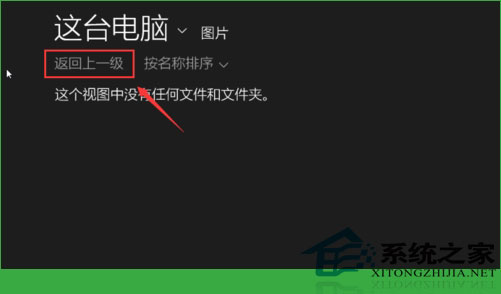
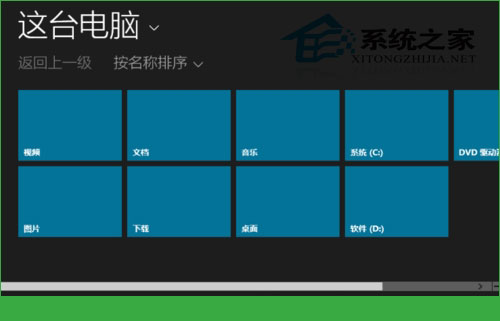
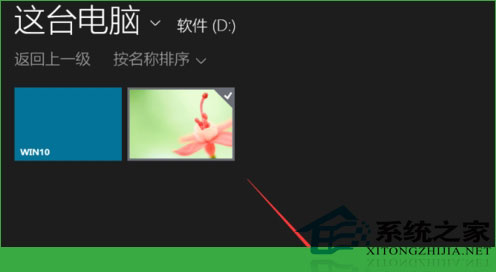
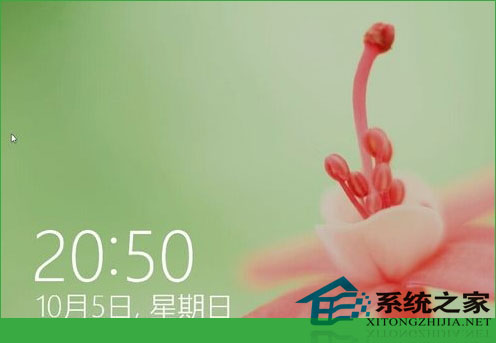
鎖定畫面是電腦的「臉面」,設定喜歡的壁紙與實用資訊,每次解鎖都心情愉悅。
Windows 7 多用戶共用電腦:帳號權限規劃與安全強化實戰
Windows 10 發布會 13 大新特性速覽:免費升級、開始功能表、虛擬桌面、Cortana、Edge、跨平台
IFA 2015 微軟 Win10 OEM 新品發布會 圖文直播完整實錄 (筆電、二合一、平板、IoT、Xbox 串流、Cortana、Continuum)
Windows 8.1 無法安裝最新版微軟必應輸入法?命令列靜默安裝破解限制
Win10 無法開啟 HTML 檔案怎麼辦?重置預設應用程式一鍵修復
Win10 預覽版官方快速下載教學:用迅雷加速下載 ISO 鏡像
Win10 Mobile 10536.1004 更新與修復內容完整彙總:Insider Hub 回歸、單手模式全機型開放、照片應用大改版、單跳升級