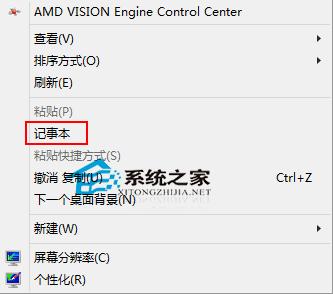
將記事本加入桌面/資料夾右鍵選單,可大幅提升啟動/編輯效率。兩大場景:空白處右鍵新增「記事本」直接啟動;檔案右鍵新增「用記事本開啟」快速編輯任意檔案。本文提供註冊表手動建立步驟與即用型 REG 檔程式碼。
regedit → 定位:HKEY_CLASSES_ROOT\Directory\Background\shellshell → 新增 → 項目 → 命名 記事本。記事本 下新增子項目 command。command 下的 (預設) 字串值 → 數值資料:C:\Windows\System32\notepad.exe → 確定。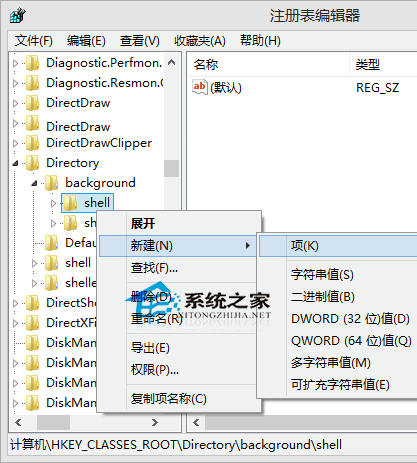
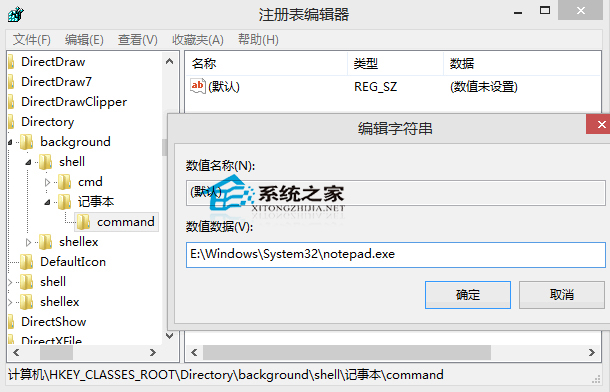
HKEY_LOCAL_MACHINE\SOFTWARE\Classes\*\shell(無則新增)。shell 下新增項目 notepad,修改 (預設) 值為 用記事本開啟。notepad 下新增 command 子項目,修改 (預設) 值為 notepad %1(notepad 與 %1 間有一空格)。AddNotepadToContextMenu.reg 雙擊匯入)Windows Registry Editor Version 5.00
[HKEY_CLASSES_ROOT\Directory\Background\shell\記事本]
@="記事本"
[HKEY_CLASSES_ROOT\Directory\Background\shell\記事本\command]
@="C:\\Windows\\System32\\notepad.exe"
[HKEY_LOCAL_MACHINE\SOFTWARE\Classes\*\shell\notepad]
@="用記事本開啟"
[HKEY_LOCAL_MACHINE\SOFTWARE\Classes\*\shell\notepad\command]
@="notepad %1"
註冊表編輯器中刪除對應項目:HKEY_CLASSES_ROOT\Directory\Background\shell\記事本 及 HKEY_LOCAL_MACHINE\SOFTWARE\Classes\*\shell\notepad,即時生效。
notepad右鍵選單整合最符合肌肉記憶,建議依習慣部署上述一或兩項。