Win10 執行 gpedit.msc 彈出黃色三角驚嘆號錯誤,主因是 Microsoft-Windows-Geolocation-WLPAdm.admx 範本檔案損毀或版本衝突。刪除該檔即可恢復正常。
執行 gpedit.msc 後出現錯誤對話框,標題列帶有警告圖示,內容提示 ADMX 檔案解析失敗。
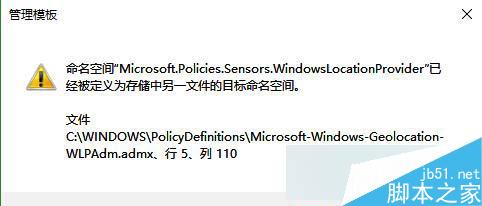
C:\Windows\PolicyDefinitions\
Microsoft-Windows-Geolocation-WLPAdm.admxgpedit.msc 驗證錯誤消失sfc /scannow 修復系統檔案WindowsDefender.admx 等)精準刪除損毀範本,群組原則編輯器即刻重生。
Win7 IE10「Internet Explorer 已停止運作」雙重解法:重置 + 關閉 GPU 渲染
64 位元 Windows 正確註冊 32 位元 COM 元件:避開 Regsvr32 陷阱
Win8 安裝 KB3000061 更新失敗?官方確認註冊表刪除鍵值即可修復
Windows Server 2003 IIS ASP 上傳 200KB 限制突破:修改 Metabase.xml ASPMaxRequestEntityAllowed
使用 Windows 7 內建 BitLocker 為 USB 隨身碟加密保護資料
Win10 RedStone 預覽版 14267 已知問題及修復內容彙總(持續更新)