Windows 10 使用者回報 UAC(使用者帳戶控制)同意提示框出現時滑鼠無法點擊「是/否」,導致無法執行需要提權的操作。根因通常為目前使用者帳戶不在 Administrators 群組,或 UAC 設定異常。本文提供透過啟用內建 Administrator 修復群組成員資格的標準方案,並補充 UAC 啟用/調整教學。
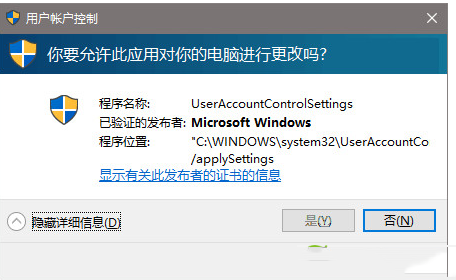 UAC 提示框滑鼠無法互動
核心修復:啟用內建 Administrator 並將原帳戶加入 Administrators 群組
- 以系統管理員身分開啟命令提示字元(CMD):開始選單右鍵 → 「命令提示字元 (系統管理員)」。
- 啟用內建 Administrator:
net user administrator /active:yes
- 切換至 Administrator 帳戶:開始 → 使用者圖示 → 登出 → 選擇 Administrator 登入(無密碼)。
- 在 Administrator 環境下,以系統管理員身分執行 CMD,將原帳戶加入 Administrators 群組:
net localgroup Administrators "你的帳戶登入名稱" /add
- 登出切回原帳戶,UAC 應恢復正常。
- (建議)修復完成後停用內建 Administrator 以提高安全性:
net user administrator /active:no
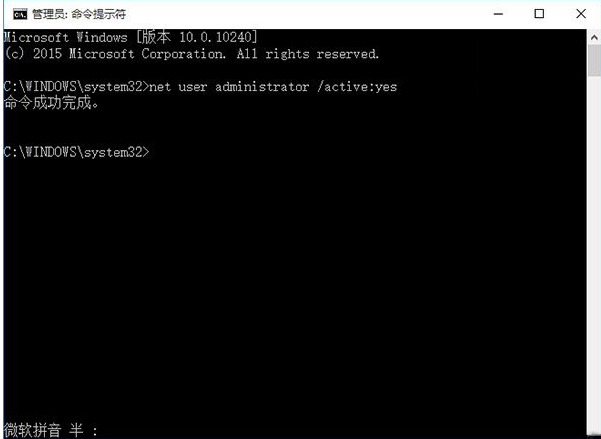 步驟 2:啟用內建 Administrator
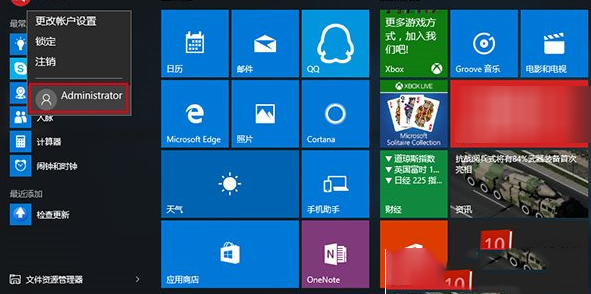 步驟 3:切換至 Administrator 登入
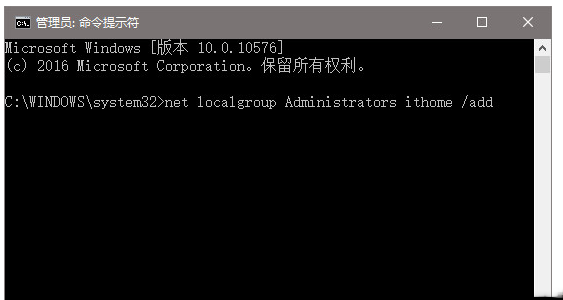 步驟 4:將原帳戶加入 Administrators 群組
補充:如何啟用/調整 UAC 等級
- Win+R →
msconfig → 「系統設定」視窗 → 「工具」頁籤 → 選擇「變更 UAC 設定」→ 「啟動」。
- UAC 滑桿預設可能被拉至最底(從不通知),此時會提示「在停用 UAC 時,無法啟動此應用程式」。將滑桿上拉至適當等級(建議預設:僅在我嘗試變更 Windows 設定時通知)。
- 確定套用,重新啟動電腦生效。
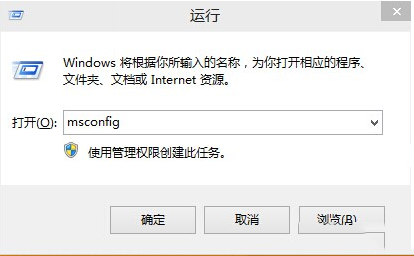 步驟 1:msconfig 開啟 UAC 設定
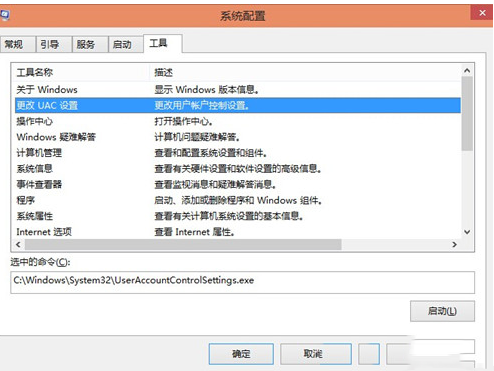 步驟 2:調整 UAC 通知等級
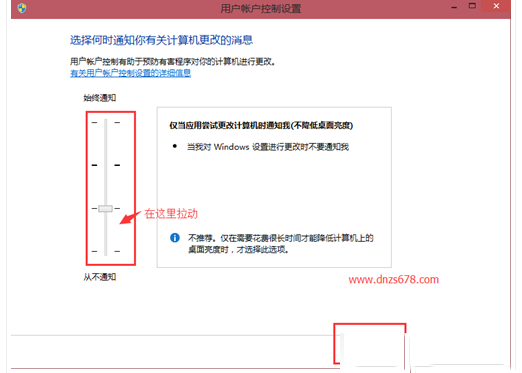 步驟 3:四個等級說明