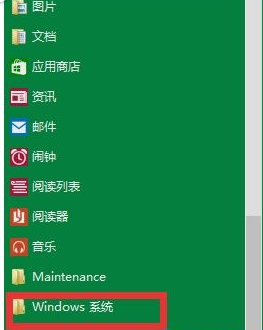
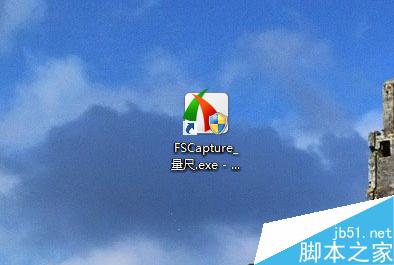
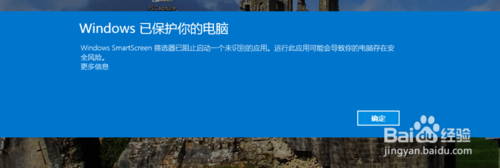
Win10 執行未被 SmartScreen 篩選器識別的軟體時,會彈出「Windows 已保護你的電腦」阻擋安裝。提供兩種解決方案:單次放行與永久關閉。

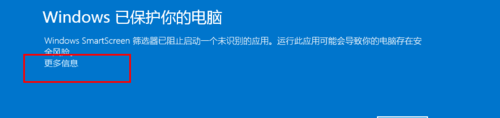
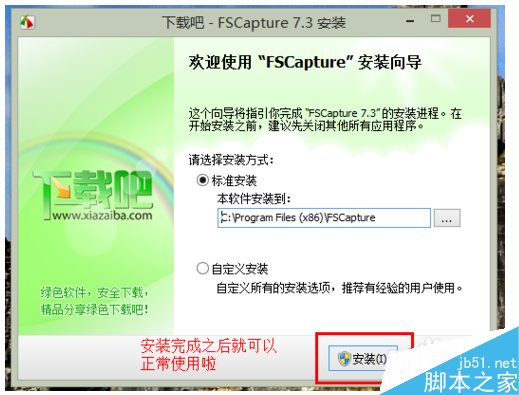
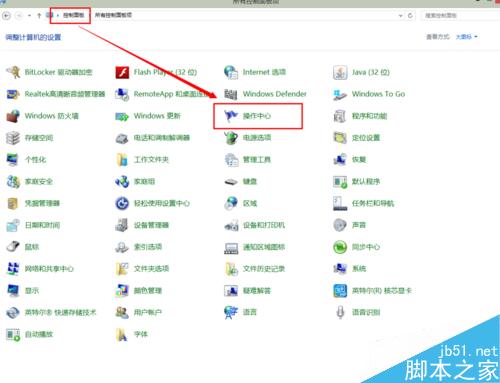
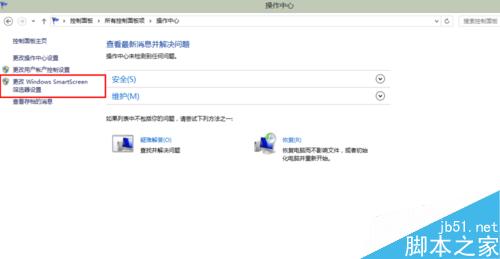
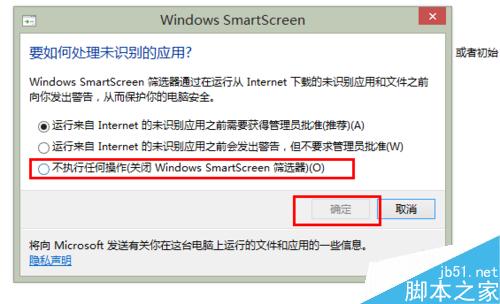
建議:一般用戶採方案一較安全;確定軟體來源可靠且厭煩彈窗者可採方案二。
Win10 TH2 10586 簡體中文專業版 ISO 映像下載:32/64 位元含校驗碼
Win10 Build 9879 安裝教學含官方下載:ISO 掛載 / 隨身碟 / 硬碟安裝全攻略
Win 10 Edge 瀏覽器開發平台將迎來大量新特性:CSS 偽類、表單元素、WebRTC 等
Win7 遊戲偵測到「仿真程式衝突」解決教學:DAEMON Tools 進階設定 + YASU 隱藏工具
Win8 破解網頁防複製限制 4 招:原始碼、百度快照、另存網頁、停用腳本
Windows 93 瀏覽器作業系統現身:網頁版懷舊體驗,附線上試玩網址