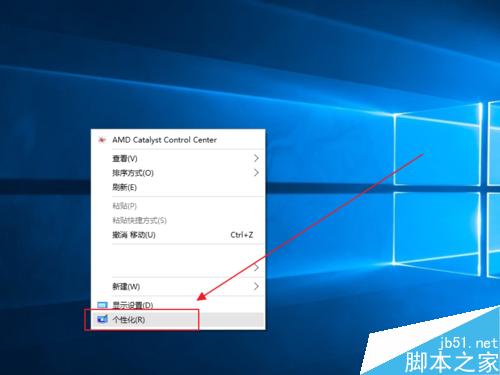
Win10 個人化介面整合主題管理,支援系統內建、Microsoft Store 下載、第三方 .theme/.deskthemepack 匯入。完整流程:桌面右鍵 → 個人化 → 主題 → 主題設定 → 選擇/下載/套用。

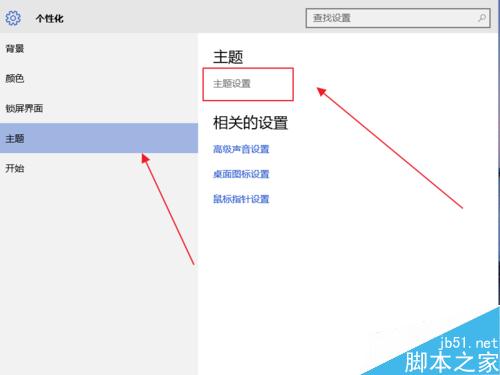
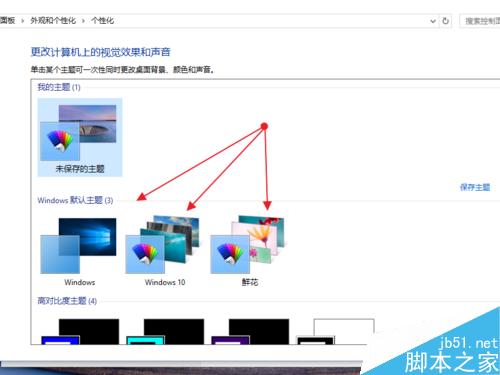
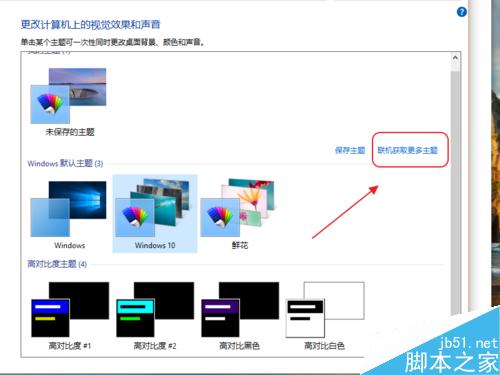
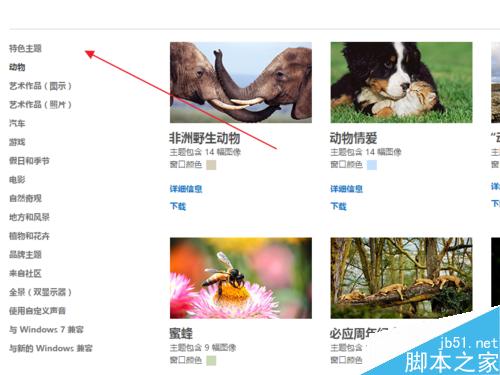
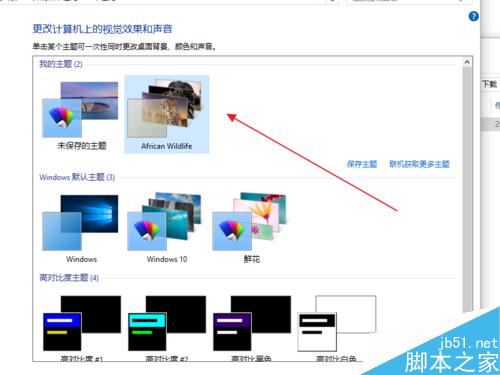
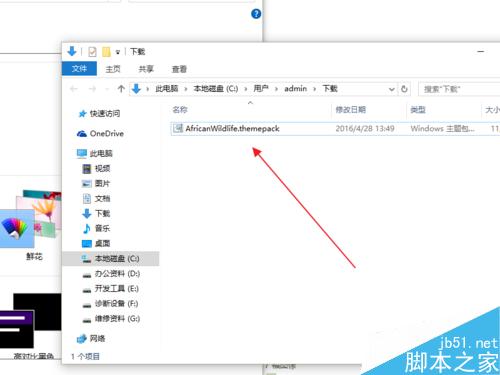
調整好壁紙、色彩、聲音、滑鼠指標、桌面圖示後:主題設定頁 → 右鍵當前主題 → 另存主題 → 命名 → 儲存為 .themepack 可分享給他人雙擊安裝。
Win10 Build 10568 隱私保護進步:Windows Defender 上傳可疑檔案前會先詢問用戶
Win10 企業版 LTSB 分支不預裝 Edge 瀏覽器:僅保 IE11、拒功能更新、追求極致穩定
Mac 預覽程式 完整使用指南:PDF 閱讀、圖片編輯、截圖查看與格式轉換
Win7 100MB 隱藏系統保留分區:作用原理、建立時機與效能影響全解析
Win8 玩 LOL 出現 Client.exe 應用程式錯誤 0xc0000045?卸載 2345 安全衛士即可解決
Win10 開啟網路探索(自動搜尋網路裝置):設定 → 網路與網際網路 → 目前網路 → 開啟「尋找裝置與內容」