Windows XP Windows 7 Windows 2003 Windows Vista Windows 綜合教學 Linux 系統教學
Windows 10 Windows 8 Windows 2008 Windows NT Windows Server 電腦軟體教學
您现在的位置: Windows教程網 >> Windows教程 >  >> Windows 綜合教學 >> 關於 Windows

Win7 桌面圖示有黑框/黑邊?重建圖示快取(IconCache.db)一鍵修復

編輯:關於 Windows

Windows 7 開機後發現桌面圖示四周出現難看的黑色方框/黑邊**,主因是圖示快取檔 IconCache.db 損毀**。透過結束 Explorer、刪除快取、重啟 Explorer 三步驟即可徹底修復。

修復步驟(命令列版,最快)

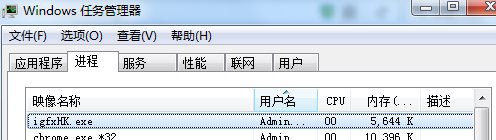
  1. 按 Ctrl+Shift+Esc 開啟工作管理員 → 詳細資料** → 找到 explorer.exe** → 右鍵 結束工作**。(桌面、工作列會消失,正常現象)
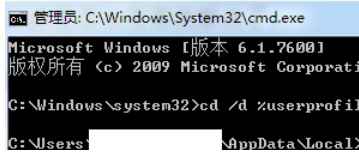
  2. 按 Win+R → 輸入 cmd → Ctrl+Shift+Enter(以管理員身分執行)。
  3. 依序執行:
CD /d %userprofile%\AppData\Local
DEL IconCache.db /A
  1. 回到工作管理員 → 檔案** → 執行新工作** → 輸入 explorer.exe → 確定**。

桌面圖示黑框示意

工作管理員結束 explorer.exe

命令提示字元刪除 IconCache.db

圖形介面替代法

  1. 開啟「資料夾選項」→ 檢視** → 勾選 「顯示隱藏的檔案、資料夾及磁碟機」**。
  2. 在總管進入 %userprofile%\AppData\Local,找到 IconCache.db 刪除。
  3. 重新開機或重啟 Explorer。

原理解析

IconCache.db 儲存圖示影像資料以加速顯示。若檔案損毀(如寫入中斷、磁碟錯誤、優化軟體誤刪),Explorer 讀取到錯誤的圖示位圖資料,導致透明背景被渲染為黑色方塊。刪除後 Explorer 會自動重建乾淨的快取。

小結

「結束 Explorer → 刪 IconCache.db → 重啟 Explorer」是 Win7/8/10 修復圖示黑框、白紙圖示、圖示不更新的黃金三步曲,無需第三方工具,操作風險極低。

Copyright © Windows教程網 All Rights Reserved