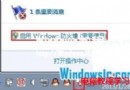
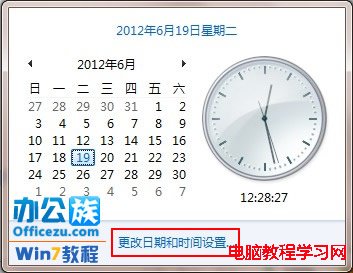
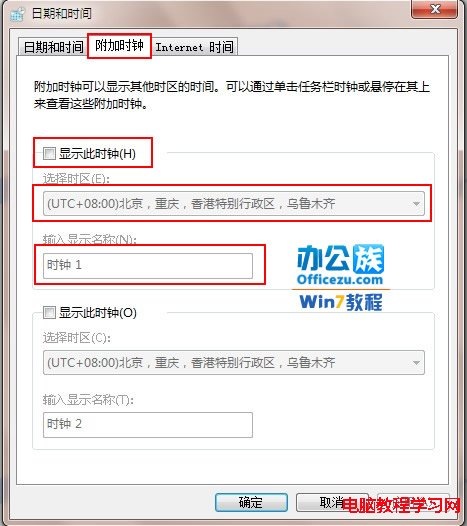
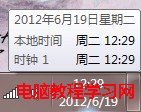
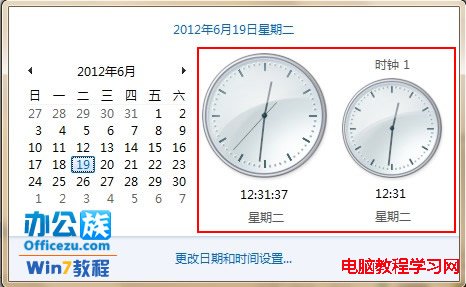
Windows 7 「附加時鐘」功能可在任務列時間工具提示顯示最多兩個額外時區時間,方便跨國會議、海外親友聯繫、外匯交易等需求,無需安裝第三方世界時鐘軟體。



| 城市 | 時區 (標準時間) | UTC 偏移 | 夏令時間 |
|---|---|---|---|
| 北京/香港/台北/新加坡 | China Standard Time | +8 | 無 |
| 東京/首爾 | Tokyo Standard Time | +9 | 無 |
| 倫敦 | GMT Standard Time | +0 | +1 (3月~10月) |
| 紐約/多倫多 | Eastern Time | -5 | -4 (3月~11月) |
| 洛杉磯/溫哥華 | Pacific Time | -8 | -7 (3月~11月) |
| 悉尼/墨爾本 | AUS Eastern Time | +10 | +11 (10月~4月) |
| 杜拜/阿布達比 | Arabian Standard Time | +4 | 無 |
tzutil /l 列出所有時區代碼Win10 原裝正版 USB 開箱全紀錄 (內地首發):含 Win98/XP/8.1/10 包裝盒全家福
Win8.1 安裝 IIS (Internet Information Services) 圖文完整教學:啟用 Windows 功能法
WinXP 開機報 svchost.exe 錯誤?硬體與軟體雙向排查完整指南
Win8.1 藍屏 tdx.sys 錯誤?網卡驅動惹禍,更新或重裝驅動即愈
微軟確認:Win10 Build 10122 僅推送快速通道,無官方 ISO
Win10 10525/10527 免費試用期限至 2016/7/15:Build 10527 已修復 Windows 8 Logo 顯示 Bug