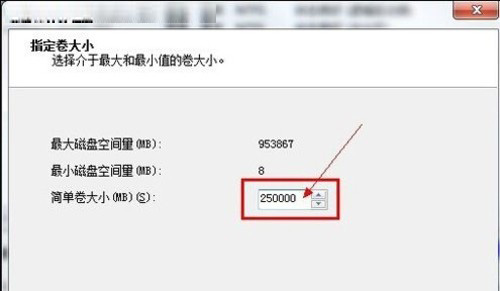
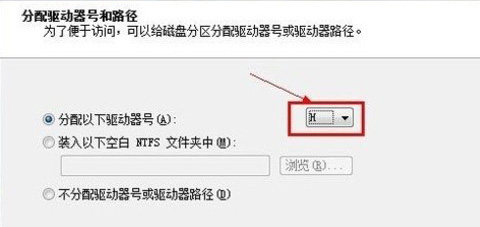
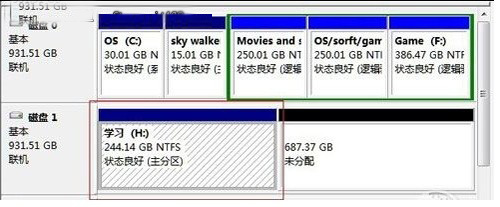
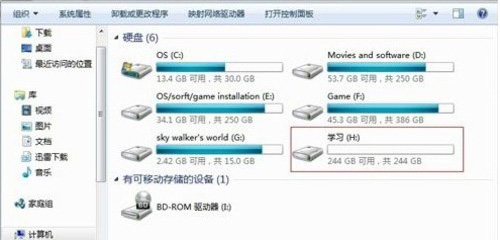
Windows 7 內建「磁碟管理」即可對新硬碟分區、調整現有分區大小,操作直觀且不損資料、不產生垃圾檔,無需第三方分區軟體。
Win10 正式版 10240 推送三枚累積更新 KB3081448/KB3081449/KB3081452
Win10 Build 10134 家庭版升級專業版過程曝光(含中文版截圖)
Win8 升級 Win10 出現錯誤 0x800703F1?一條 CMD 指令修復更新元件
升級 Windows 10 出現「正在還原舊版 Windows」失敗解決:360 檢測修復或全新安裝 ISO
微軟官方確認:Win10 Mobile 正式版升級暫限 18 款機型,無第二波計劃
Windows 10 TH2 正式版虛擬桌面功能完整教學:工作、娛樂桌面分離,保護隱私