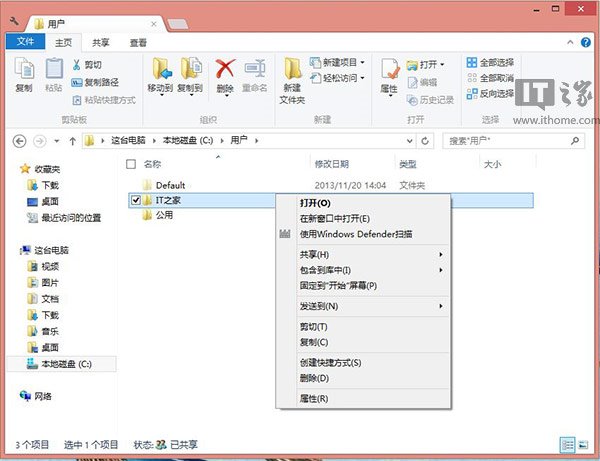
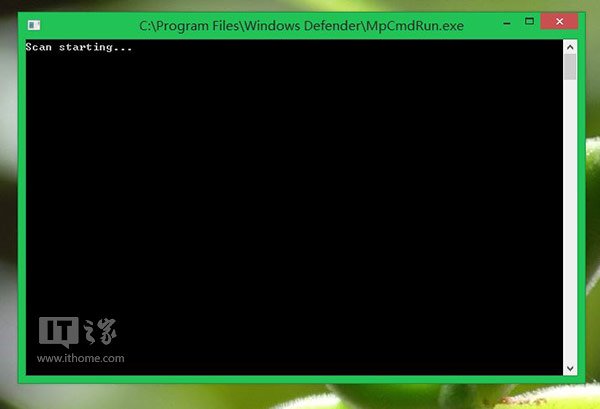
透過登錄編輯器擴展右鍵選單,快速啟動 Windows Defender 掃描特定資料夾或磁碟 (不支援單一檔案)。
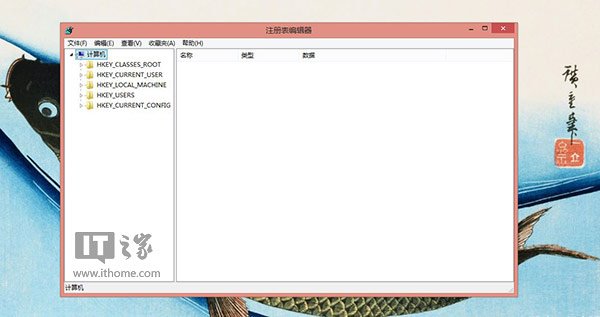
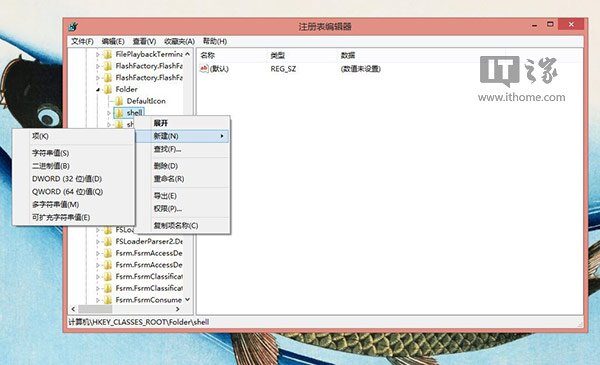
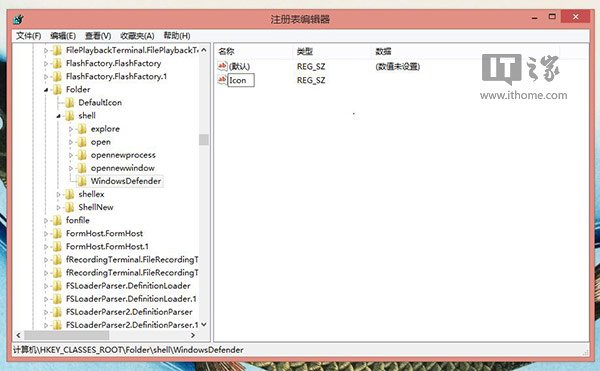
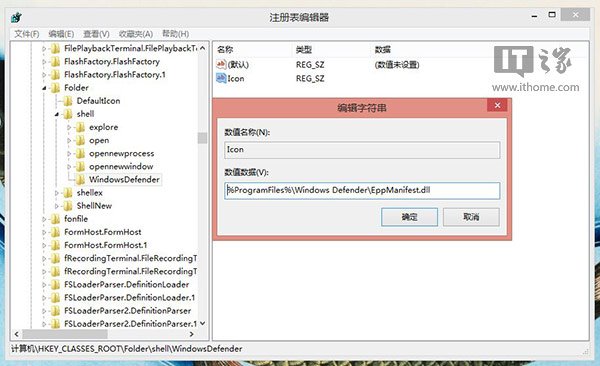
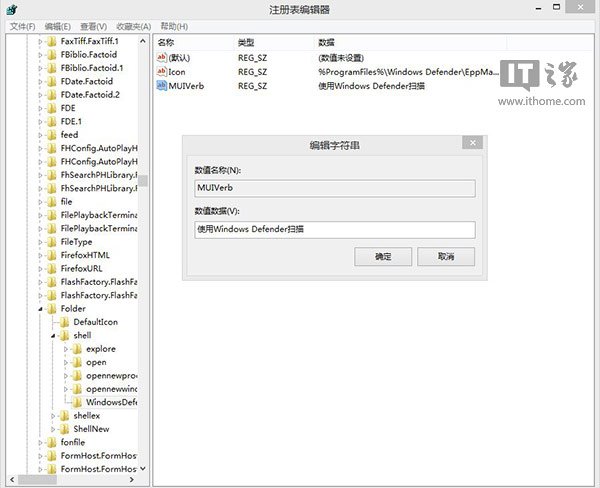
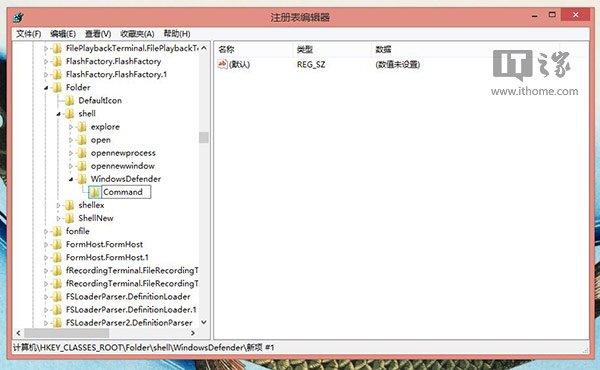
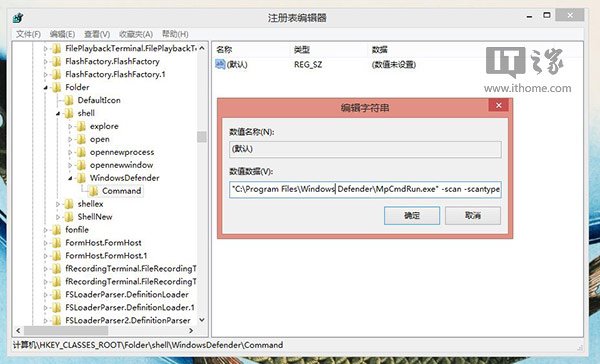
regedit 開啟登錄編輯器。HKEY_CLASSES_ROOT\Folder\Shell。Shell → 「新增」→ 「項」 → 命名 WindowsDefender。WindowsDefender 下新增字串值:Icon = %ProgramFiles%\Windows Defender\EppManifest.dllMUIVerb = 使用 Windows Defender 掃描WindowsDefender 下新增項 Command。Command 下的「預設」字串值:"C:\Program Files\Windows Defender\MpCmdRun.exe" -scan -scantype 3 -SignatureUpdate -file %1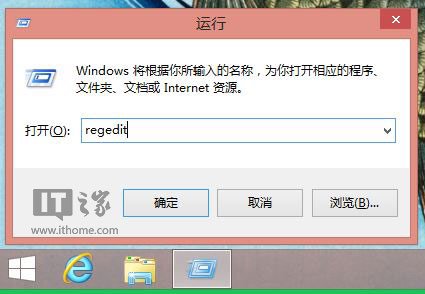
Win10 新瀏覽器「斯巴達」界面曝光,更像 Chrome/Firefox 的 Modern 風格
Win10 預覽版 10162 官方 ISO 鏡像下載彙總(中英繁簡 32/64 位)
Windows 10 設定螢幕保護程式:個人化設定中啟用 3D 管道等經典動畫
Win10 無法開機提示 missing operating system?U盤啟動修復引導與拔除USB裝置雙重解法
微軟公布各國 Windows 10 必備應用名單:美國推薦 Facebook、Flipboard、Hulu;中國精選 QQ、愛奇藝、微博、QQ 音樂等 28 款