Windows 7 突然找不到語言列(輸入法指示器)?常見原因有三:被隱藏、設定錯誤、ctfmon.exe 損毀或遺失。以下提供完整排除步驟。
方案一:語言列被隱藏 — 任務列右鍵勾選
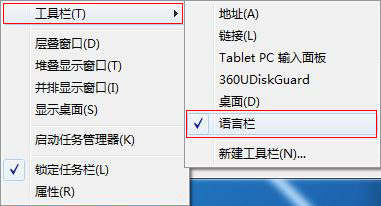
- 滑鼠右鍵點擊工作列空白處。
- 指向「工具列」> 勾選 「語言列」。
方案二:語言列設定錯誤 — 控制台重設
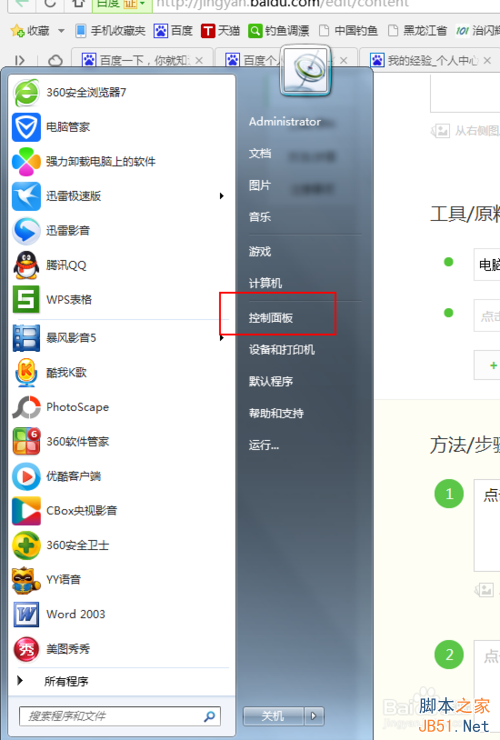
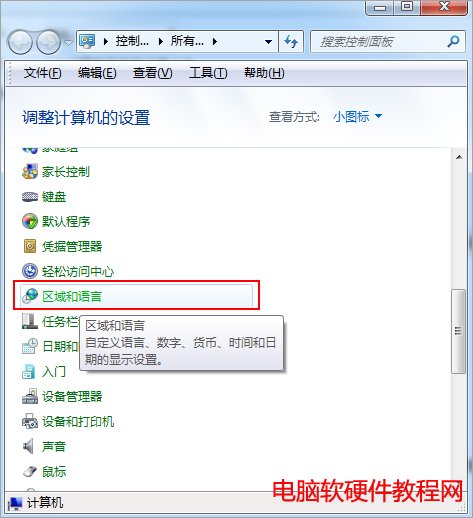
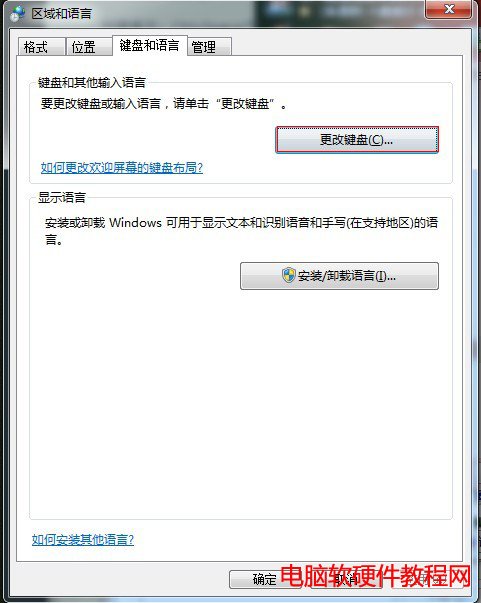
- 開啟「控制台」>「時鐘、語言和地區」>「區域和語言」。
- 切換「鍵盤和語言」索引標籤 > 點擊 「變更鍵盤」。
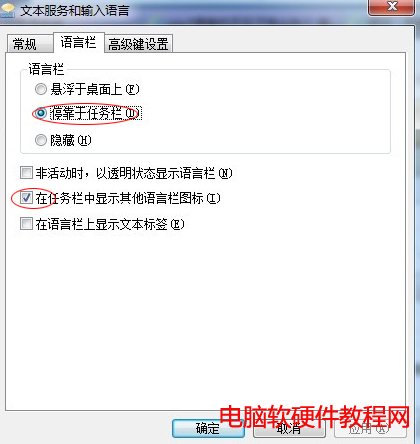
- 在「語言列」索引標籤,選擇 「停駐在工作列上」,並勾選「顯示語言列圖示」與「在語言列上顯示文字標籤」。
- 按「套用」>「確定」。
方案三:ctfmon.exe 損毀/遺失 — 修復啟動項
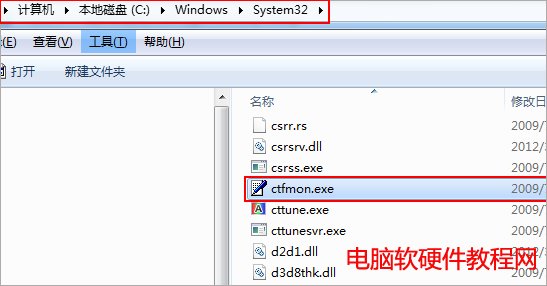
- 檢查
C:\Windows\System32\ctfmon.exe 是否存在。
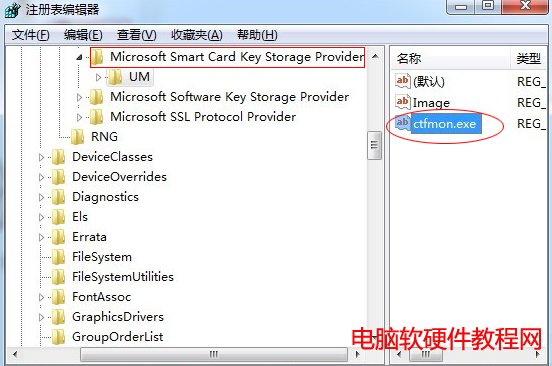
- 若存在但不啟動:按 Win + R 輸入
regedit,瀏覽至
HKEY_LOCAL_MACHINE\SOFTWARE\Microsoft\Windows\CurrentVersion\Run
- 右鍵空白處 > 新增 > 字串值,名稱
ctfmon.exe,數值資料 C:\Windows\System32\ctfmon.exe。
- 重新開機生效。
常見原因
- 使用清理/優化軟體誤刪啟動項。
- 病毒掃描誤殺或系統更新異常。
依序嘗試上述三招,多數情況可恢復語言列正常顯示。