Windows XP Windows 7 Windows 2003 Windows Vista Windows 綜合教學 Linux 系統教學
Windows 10 Windows 8 Windows 2008 Windows NT Windows Server 電腦軟體教學

Windows 8 進入安全模式三大法寶:系統設定、Metro 重開機、新增開機選單項目

編輯:Win8 系統應用技巧

Windows 8 取消開機 F8 進入安全模式,提供三種替代方案。

法一:系統設定 — 需能進入系統

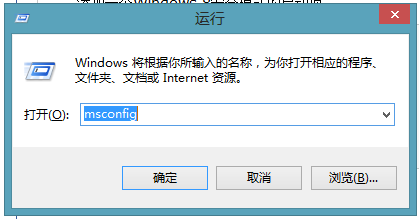
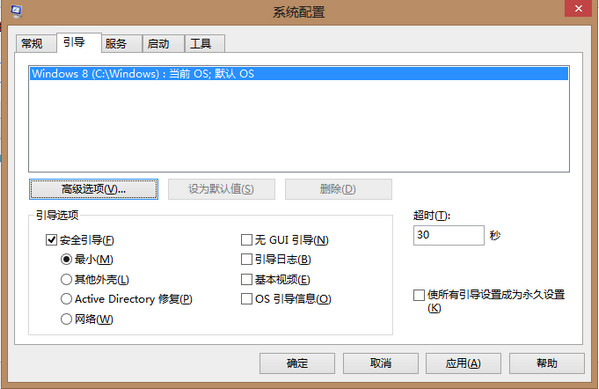
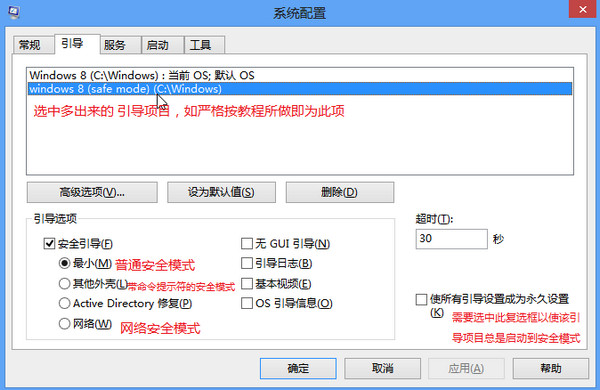
  1. Win+R → msconfig → 「開機」索引標籤。
  2. 勾選「安全開機」→ 選「最小」/「網路」/「替代命令列」。
  3. 確定 → 重開機自動進入安全模式。

注意:解決問題後必須回 msconfig 取消勾選,否則每次開機皆進安全模式。

法二:Metro 介面觸發進階啟動 — 需能進入系統

  1. Charms 列 → 「設定」 → 「變更電腦設定」 → 「一般」 → 「進階啟動」 → 「立即重新啟動」。
  2. 或按住 Shift 點選「重新啟動」。
  3. 進階選項 → 「啟動設定」 → 重新啟動 → 選擇 4/5/6 號進入對應安全模式。

法三:新增永久安全模式開機選單 — 系統損壞也能進入

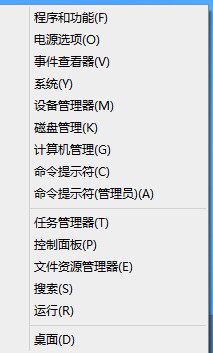
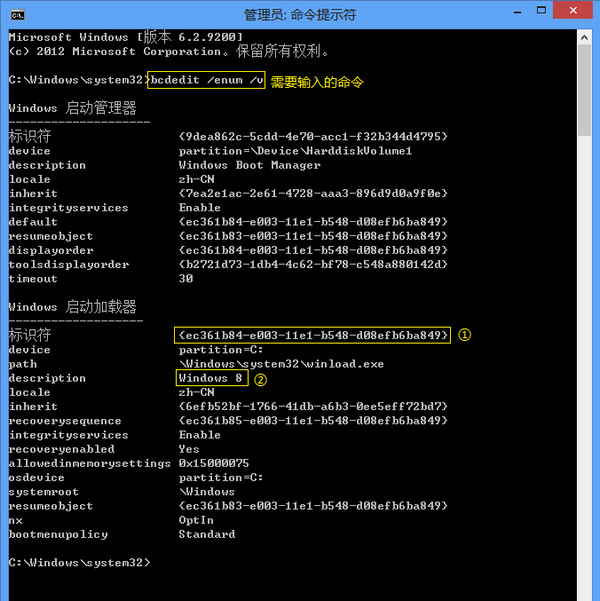
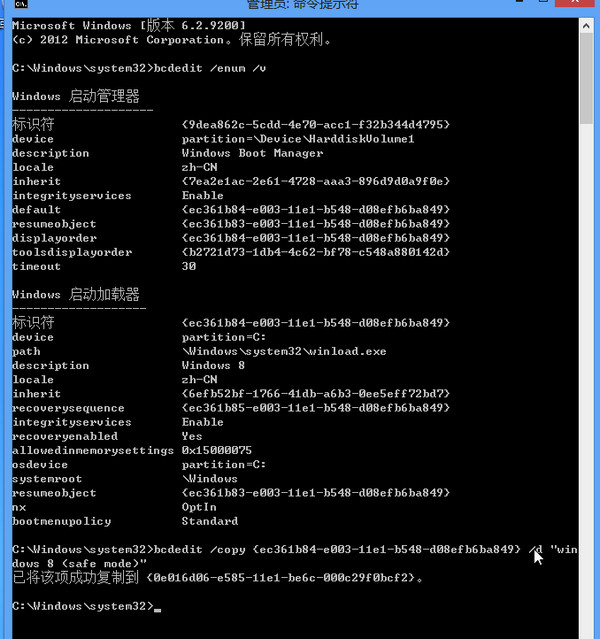
  1. 管理員 CMD:bcdedit /enum /v 記下當前系統識別碼({...})。
  2. bcdedit /copy {識別碼} /d "Windows 8 (Safe Mode)" 回傳新識別碼 {新ID}。
  3. bcdedit /set {新ID} safeboot minimal(或 network/alternateshell)。
  4. bcdedit /timeout 10 設定選單等待秒數。

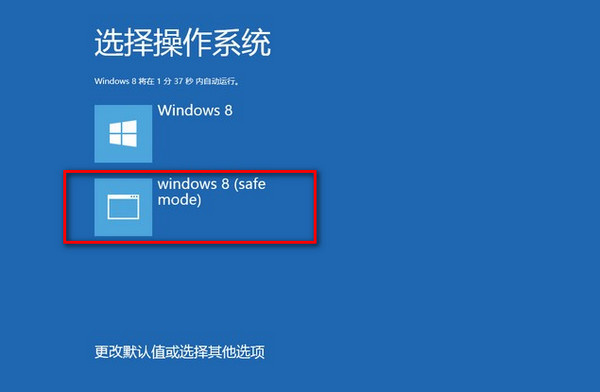
開機時將出現選單,可用方向鍵/觸控選擇「Windows 8 (Safe Mode)」進入。若需直接進入安全模式,BIOS 後 F8 亦可喚出此選單(解析度 800×600)。

安全模式原理

不載入第三方驅動程式,以系統最小核心啟動,便於移除問題軟體/驅動、修復系統錯誤,事半功倍。

Copyright © Windows教程網 All Rights Reserved