Windows XP Windows 7 Windows 2003 Windows Vista Windows 綜合教學 Linux 系統教學
Windows 10 Windows 8 Windows 2008 Windows NT Windows Server 電腦軟體教學

Windows 8 找不到記憶體診斷工具?手動加入開機選單完整教學

編輯:Win8 系統應用技巧

背景

Windows 8 移除了開機選單中的「Windows 記憶體診斷」選項,但核心程式 C:\boot\memtest.exe 仍保留。透過修改 BCD 開機設定資料,可將其加回圖形化開機選單。

所需工具

  • Visual BCD Editor 0.9.3.1(或更新版本),可從可信技術網站下載。

操作步驟

  1. 以系統管理員身分執行 Visual BCD Editor。
  2. 選單「Store」→「Open store」→ 選擇 C:\boot\bcd。
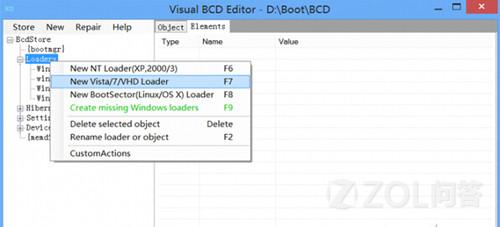
  3. 左側樹狀結構定位至「Loaders」節點,右鍵選擇「New Vista/7/VHD」。
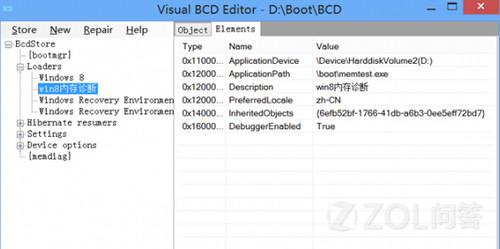
  4. 在右側屬性編輯區填入以下值:
屬性名稱設定值
applicationDeviceWindows 8 安裝分區(通常為 C:)
applicationPath\boot\memtest.exe
descriptionWindows 記憶體診斷
preferredLocalezh-CN
debuggerEnabledTrue

其餘選項保持預設,按「確定」儲存。

Visual BCD 編輯介面 新增開機項目屬性

驗證

  1. 重新開機。
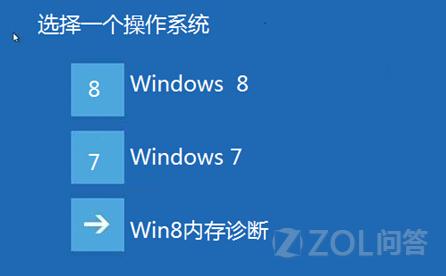
  2. 在圖形化開機選單中,應可見「Windows 記憶體診斷」選項。
  3. 選擇該項即可進入記憶體測試程式。
開機選單顯示記憶體診斷

替代方案(較簡單)

  • 在 Windows 內執行 Win+R → mdsched.exe → 選擇「立即重新啟動並檢查問題」,同樣能執行記憶體診斷,無需修改 BCD。

  • 或製作 Windows 安裝媒體(USB/DVD),從啟動媒體進入「修復電腦」→「疑難排解」→「進階選項」→「Windows 記憶體診斷」。
Copyright © Windows教程網 All Rights Reserved