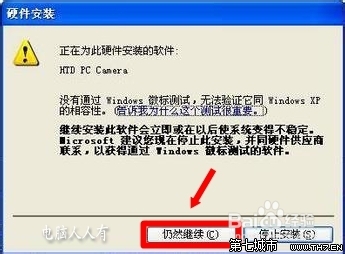
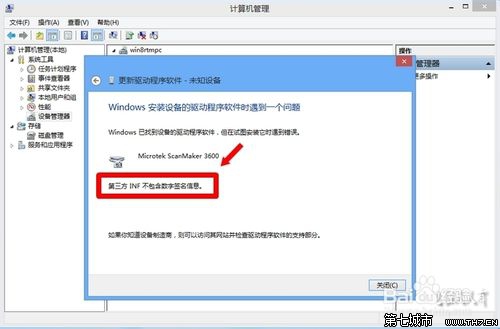
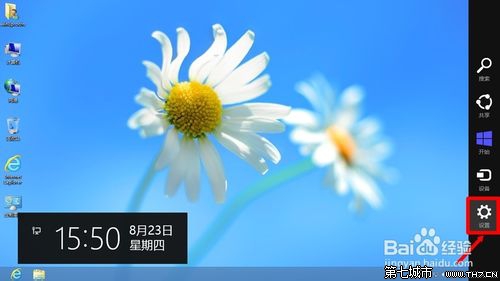
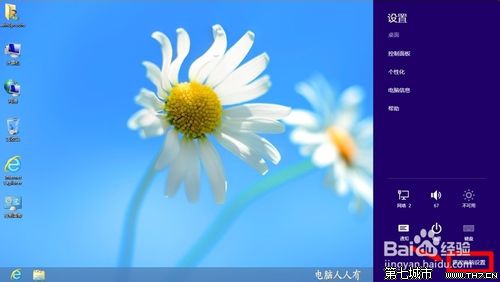
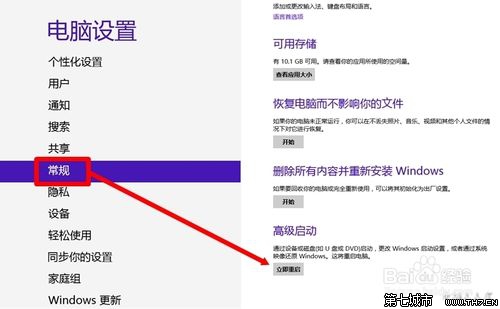
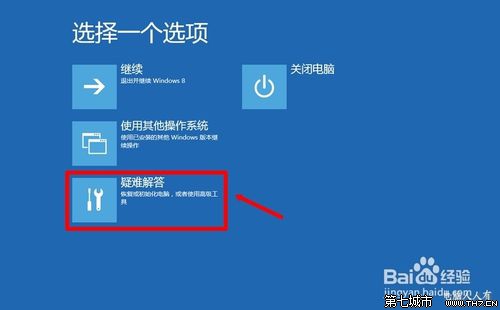
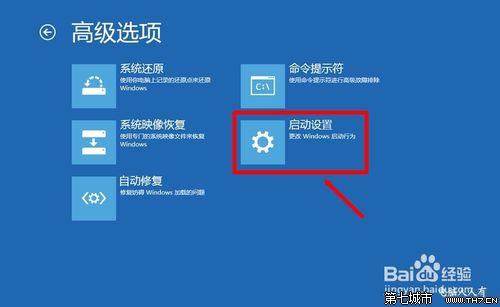
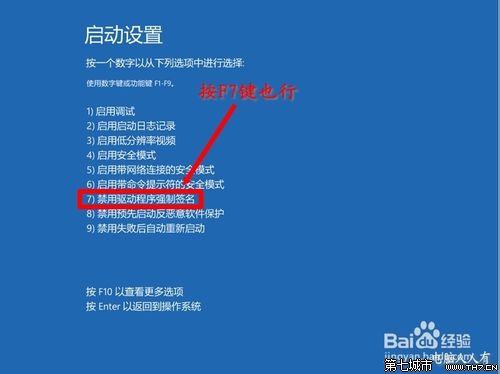
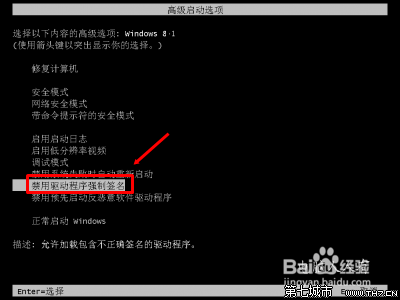
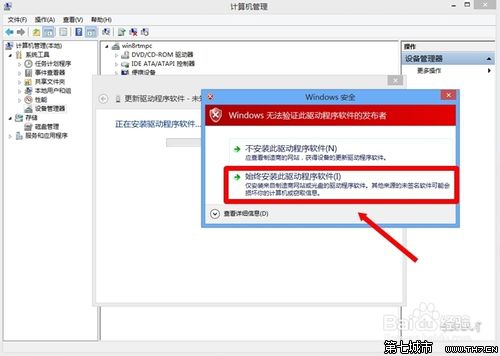
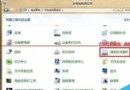
Windows 8.1 強制驅動程式簽章驗證,導致舊裝置無簽章驅動無法安裝。透過進階啟動選項暫停簽章強制即可安裝。
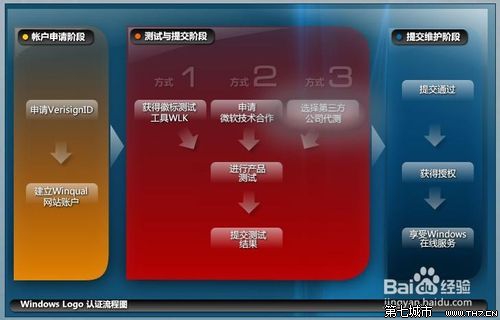
注意:此模式僅臨時生效,重開機後恢復強制簽章。長期使用無簽章驅動建議申請 WHQL 認證或使用測試簽章模式。
Windows 8.1「新增功能」用法詳解:升級版本與啟用關鍵
Windows 8 關閉 SmartScreen 篩選器,防止下載檔案資訊外洩隱私
Win8.1 開機無開機音樂?關閉快速啟動恢復啟動音效
Windows 8 上不了網?360 安全衛士「斷網急救箱」一鍵診斷修復
Win8 設定網路時間自動同步兩大方法圖解
Windows 8 開啟 Windows Defender 完整步驟教學
Win8.1 鎖定畫面顯示應用程式詳細資訊:行事曆、Skype 來電一目瞭然
Win8.1下Outlook.com附件下載極慢?四步優化瀏覽器與Silverlight加速