Win8 IE 瀏覽器頻繁提示「未安裝 Flash Player」解決方案
Windows 8 內建的 IE 10/11 已整合 Flash Player,無需另行安裝。若仍彈出「您的電腦沒有安裝 Flash Player」提示,通常是因為附加元件被停用或相容性設定錯誤。以下提供兩種解決方案。
方案一:啟用 Shockwave Flash Object 附加元件
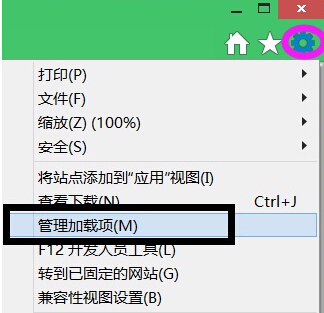
- 開啟 IE 瀏覽器,點選右上角齒輪圖示 →「管理附加元件」。
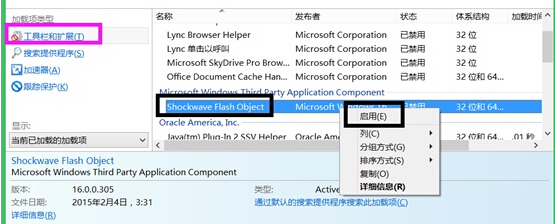
- 在「工具列與延伸模組」下,找到 Shockwave Flash Object。
- 若狀態顯示「已停用」,右鍵點選 →「啟用」。
- 重新整理網頁,Flash 內容應正常顯示。
方案二:設定 Flash Player 相容模式
- 下載最新版 Flash Player 安裝程式(Adobe 官網)並安裝。
- 在桌面或開始畫面找到 Flash Player 設定捷徑(或控制台 → Flash Player)。
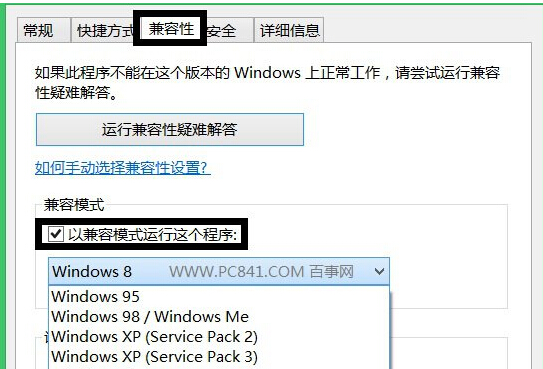
- 右鍵點選 →「內容」→「相容性」頁籤。
- 勾選「以相容模式執行這個程式」,下拉選單選擇「Windows 7」。
- 點選「確定」套用,重新啟動 IE 瀏覽器。
補充說明
- Adobe 已於 2020/12/31 停止支援 Flash Player,現代瀏覽器(Edge、Chrome、Firefox)均已移除 Flash 支援。
- 若網站仍需 Flash,建議使用支援 Flash 的舊版瀏覽器(如 IE 11)並僅在受信任網站啟用,或尋找 HTML5 替代方案。
- Windows Update 會自動推送 Flash Player 移除更新(KB4577586),安裝後系統將不再包含 Flash 元件。