Windows XP Windows 7 Windows 2003 Windows Vista Windows 綜合教學 Linux 系統教學
Windows 10 Windows 8 Windows 2008 Windows NT Windows Server 電腦軟體教學

Windows 8 開機自動進入傳統桌面設定教學:建立 .scf 快速捷徑並加入啟動資料夾

編輯:Win8 系統應用技巧

Windows 8 開機預設進入「開始畫面」 (Metro),傳統桌面使用者需額外點擊「桌面」磚貼。透過建立特殊 .scf 捷徑並放入啟動資料夾,可實現開機直接進入桌面,無需第三方工具。

建立「自動桌面.scf」捷徑

  1. 開啟記事本,貼上以下內容:
[Shell]
Command=2
IconFile=Explorer.exe,3
[Taskbar]
Command=ToggleDesktop
  1. 另存為 自動桌面.scf (副檔名必須為 .scf,非 .txt),存放位置任意 (建議 %UserProfile%\Desktop)。
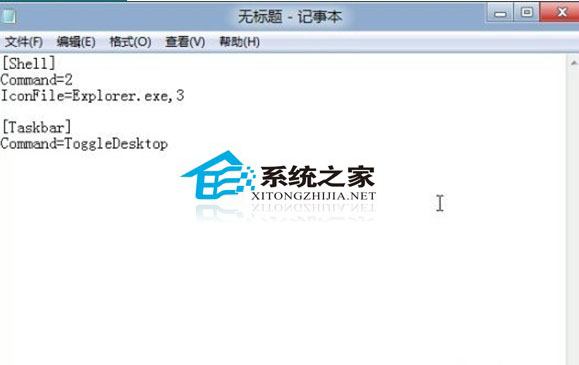
記事本編輯 .scf 內容
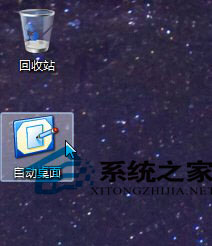
產生的 .scf 圖示

測試捷徑效果

  • 開啟數個視窗 (如總管、瀏覽器)。
  • 雙擊 自動桌面.scf,所有視窗應最小化,顯示桌面。

設定開機自動執行

  1. 按 Win+R 輸入 shell:startup 開啟目前使用者啟動資料夾。
  2. 將 自動桌面.scf 複製/剪貼到此資料夾。
  3. 或建立捷徑指向 .scf 檔案放入啟動資料夾。

原理解析

  • .scf (Shell Command File) 為 Windows 95 時代遺留格式,支援 Command=2 (顯示桌面) 与 ToggleDesktop 切換桌面顯示狀態。
  • 放入啟動資料夾即在使用者登入後自動執行,模擬按下 Win+D 或點擊工作列「顯示桌面」按鈕。

替代方案 (Windows 8.1/10 內建)

  • Windows 8.1 Update 1 起提供「登入時直接進入桌面」選項:工作列右鍵 → 「屬性」 → 「導覽」索引標籤 → 勾選「登入時直接轉到桌面,而非啟動畫面」。
  • Windows 10 預設即為桌面模式,平板模式才進入開始畫面。

此 .scf 技巧相容 Windows 7/8/8.1,無需修改登錄、安裝常駐程式,輕量且有效,適合堅持傳統桌面工作流的使用者。

Copyright © Windows教程網 All Rights Reserved