Windows 8 安裝完成後若為 Legacy (BIOS) 模式,可透過重建 EFI 系統分區並修復開機載入器轉為 UEFI 模式。需支援 UEFI 的 PE 環境協助操作。
轉換步驟
- 確認已安裝 Windows 8 (Legacy 模式)。
- 進入主機板 BIOS,將啟動模式改為 UEFI (關鍵選項:UEFI Boot = Enabled)。此時原硬碟無法開機。
- 使用支援 UEFI 的 PE 開機 (新版電腦店、大白菜、老毛桃 PE 均支援)。
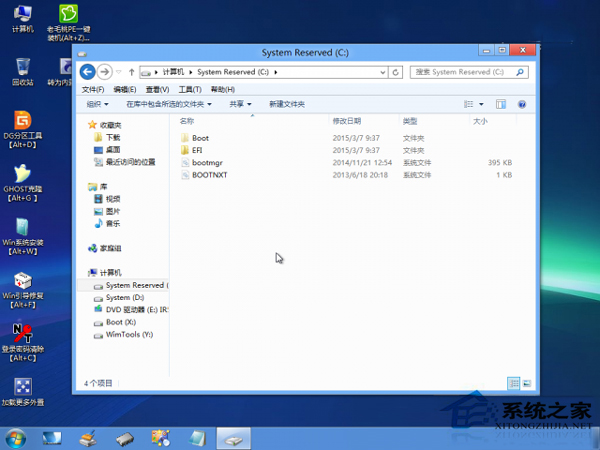
- PE 中格式化原 100MB/350MB 系統保留分區為 FAT32 (若無則建立 100MB FAT32 分區)。**務必選 FAT32 格式**。
- 在 PE 中執行
bcdboot C:\Windows /l zh-cn /s S: /f UEFI (C 為系統盤、S 為新建 EFI 分區),重建 UEFI 開機檔案。
- 重新開機,進入 BIOS 確認開機順序優先 UEFI 硬碟,即可 UEFI 模式進入 Windows 8。
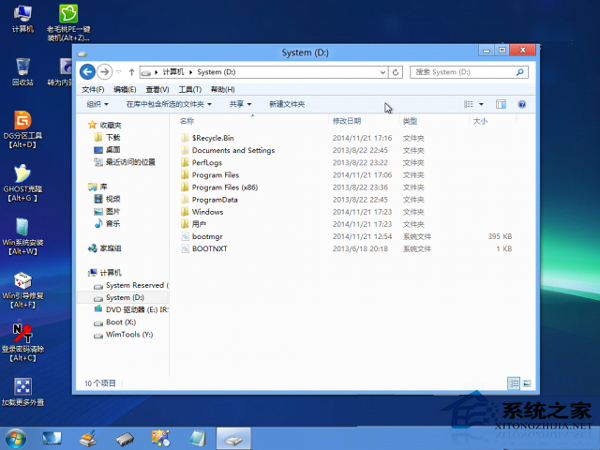
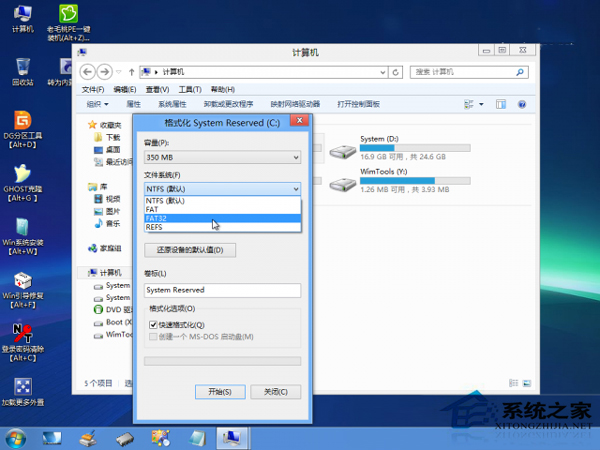
操作涉及磁碟分區與開機載入器,**操作前請備份資料**,建議具備進階電腦知識者嘗試。