Windows XP Windows 7 Windows 2003 Windows Vista Windows 綜合教學 Linux 系統教學
Windows 10 Windows 8 Windows 2008 Windows NT Windows Server 電腦軟體教學

手把手教你製作 Windows 8 To Go 隨身系統 U 盤

編輯:Win8 系統基礎知識

Windows To Go 是 Windows 8 引入的企業級功能,允許將完整的 Windows 8 企業版環境安裝至經認證的 USB 存儲裝置,實現「插上即用、帶走即走」的隨身工作站體驗。以下是基於官方工具的標準製作流程。

準備清單

  • 容量 ≥ 32 GB 的 USB 3.0 隨身碟(或外接硬碟),建議採用 Microsoft 認證的 WTG 專用閃存
  • 一台已安裝 Windows 8/8.1/10 的電腦(作為構建宿主)
  • Windows 8 企業版 ISO 鏡像檔
  • ImageX.exe(來自 Windows ADK / 舊版 AIK 的 C:\Program Files\Windows AIK\Tools\amd64 或 x86 目錄)

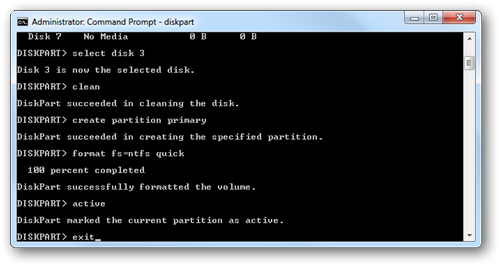
步驟 1:使用 DiskPart 建立啟動分區

  1. 以系統管理員身分執行 cmd.exe
  2. 輸入 diskpart 進入交互模式
  3. list disk 確認 USB 磁碟編號(假設為 #)
  4. select disk #
  5. clean 清除所有分區
  6. create partition primary
  7. format fs=ntfs quick
  8. active 設為啟動分區
  9. exit 離開 DiskPart

DiskPart 操作示意圖

步驟 2:應用映像與配置開機

  1. 掛載 Windows 8 ISO,將 \sources\install.wim 複製至 ImageX 同目錄
  2. 在命令提示字元切換至該目錄,執行:
    imagex.exe /apply install.wim 1 X:\(X 為 USB 盤符)
  3. 映像部署完成後,執行:
    bcdboot.exe X:\Windows /s X: /f ALL

若無錯誤提示,即表示 Windows To Go 製作成功。重啟電腦並從 USB 啟動,即可進入完整的 Windows 8 企業環境,所有應用、設定、憑證隨身攜帶,極適合企業移動辦公與災備場景。

Copyright © Windows教程網 All Rights Reserved