當 sfc /scannow 回報「Windows 資源保護找到損壞檔案但無法修復其中某些檔案」,表示 WinSxS 元件存放區備份也已損壞。需從相同版本 Windows 安裝媒體 (install.wim) 提取原始檔案手動取代。
findstr /C:"[SR] Cannot repair member file" %windir%\logs\cbs\cbs.log > "%userprofile%\Desktop\sfcdetails.txt"sfcdetails.txt 記錄損壞檔名。C:\Windows 搜尋檔名,所有搜尋結果皆為損壞複本(含來源與備份)。sources\install.wim(用 7-Zip/WinRAR)。install.wim 內索引 1~5 對應版本(1=Core, 4=Pro, 5=Enterprise),進入對應版本 Windows\System32 等目錄提取同名檔案。takeown /f "損壞檔案完整路徑"icacls "損壞檔案完整路徑" /grant Administrators:Fcopy /y)。sfc /scannow 驗證修復完成。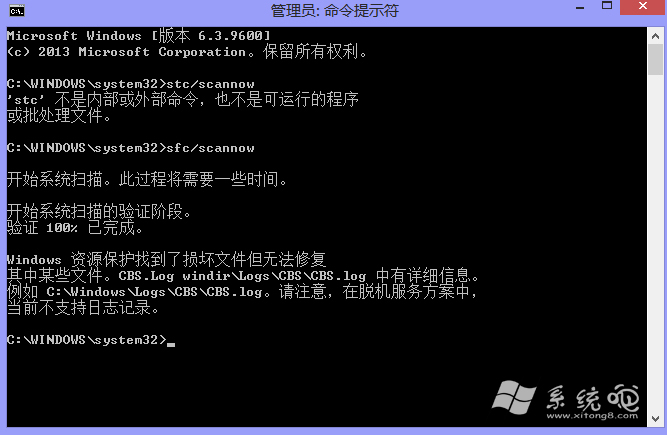

DISM /Online /Cleanup-Image /RestoreHealth(需網路下載健全元件)。setup.exe 選「保留個人檔案與應用程式」升級,可重建所有系統檔案。