Windows 8 隱藏關機選單於 Charms 列,操作步驟繁瑣讓許多使用者抓狂。本文提供一鍵匯入登錄檔,將「關機、重啟、登出、切換使用者、睡眠、休眠、鎖定」七大電源指令直接放入桌面右鍵選單,滑鼠右鍵即達,效率倍增。
在登錄表 HKEY_CLASSES_ROOT\DesktopBackground\Shell 建立 Power Menu 子機碼,透過 SubCommands 串聯七個預設系統命令,並指定圖示與顯示位置。
Windows Registry Editor Version 5.00

[HKEY_CLASSES_ROOT\DesktopBackground\Shell\Power Menu]
"MUIVerb"="Power Menu"
"SubCommands"="lock;logoff;switch;sleep;hibernate;restart;shutdown"
"Icon"="shell32.dll,215"
"Position"="bottom"

[HKEY_LOCAL_MACHINE\SOFTWARE\Microsoft\Windows\CurrentVersion\Explorer\CommandStore\shell\lock]
@="Lock"
[HKEY_LOCAL_MACHINE\SOFTWARE\Microsoft\Windows\CurrentVersion\Explorer\CommandStore\shell\lock\command]
@="Rundll32 User32.dll,LockWorkStation"

[HKEY_LOCAL_MACHINE\SOFTWARE\Microsoft\Windows\CurrentVersion\Explorer\CommandStore\shell\logoff]
@="Log Off"
[HKEY_LOCAL_MACHINE\SOFTWARE\Microsoft\Windows\CurrentVersion\Explorer\CommandStore\shell\logoff\command]
@="Shutdown -l"

[HKEY_LOCAL_MACHINE\SOFTWARE\Microsoft\Windows\CurrentVersion\Explorer\CommandStore\shell\switch]
@="Switch User"
[HKEY_LOCAL_MACHINE\SOFTWARE\Microsoft\Windows\CurrentVersion\Explorer\CommandStore\shell\switch\command]
@="tsdiscon.exe"

[HKEY_LOCAL_MACHINE\SOFTWARE\Microsoft\Windows\CurrentVersion\Explorer\CommandStore\shell\sleep]
@="Sleep"
[HKEY_LOCAL_MACHINE\SOFTWARE\Microsoft\Windows\CurrentVersion\Explorer\CommandStore\shell\sleep\command]
@="rundll32.exe powrprof.dll,SetSuspendState Sleep"

[HKEY_LOCAL_MACHINE\SOFTWARE\Microsoft\Windows\CurrentVersion\Explorer\CommandStore\shell\hibernate]
@="Hibernate"
[HKEY_LOCAL_MACHINE\SOFTWARE\Microsoft\Windows\CurrentVersion\Explorer\CommandStore\shell\hibernate\command]
@="Shutdown -h"

[HKEY_LOCAL_MACHINE\SOFTWARE\Microsoft\Windows\CurrentVersion\Explorer\CommandStore\shell\restart]
@="Restart"
[HKEY_LOCAL_MACHINE\SOFTWARE\Microsoft\Windows\CurrentVersion\Explorer\CommandStore\shell\restart\command]
@="Shutdown -r -f -t 00"

[HKEY_LOCAL_MACHINE\SOFTWARE\Microsoft\Windows\CurrentVersion\Explorer\CommandStore\shell\shutdown]
@="Shut Down"
[HKEY_LOCAL_MACHINE\SOFTWARE\Microsoft\Windows\CurrentVersion\Explorer\CommandStore\shell\shutdown\command]
@="Shutdown -s -f -t 00"
PowerMenu.reg (編碼選 ANSI 或 UTF-8 均可)。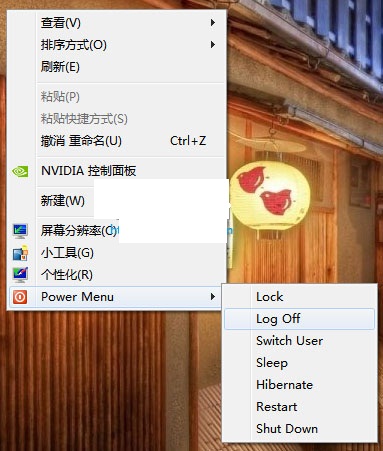
同樣建立 RemovePowerMenu.reg,內容為:
Windows Registry Editor Version 5.00
[-HKEY_CLASSES_ROOT\DesktopBackground\Shell\Power Menu]
匯入即可還原原狀。
-f 強制關閉應用程式,-t 00 表示零秒延遲。告別繁瑣 Charms 列,右鍵一鍵掌控電源,Windows 8 操作體驗立刻升級!
Win8 藍屏錯誤 0x0000007B?BIOS 設定 SATA 模式改為 AHCI 修復
微軟 Surface Pro 詳細規格與定位:Core i5、1080p、Win8 Pro、5小時續航
Win8 系統忘記 BitLocker 密碼怎麼辦?完整解決方案與預防指南
Windows 8.1 螢幕解析度調整兩種方法:桌面右鍵與電腦設定雙管道操作
Windows 8 啟用錯誤代碼完整對照表:從 0x80072efd 到 0xC004C014 逐項解析
Win8 系統還原點創建、刪除與系統還原完整大全(兩種還原方式)