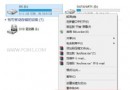
在 Windows 8 中存取系統資料夾(如 C 槽內的系統目錄)時,常會遇到「無法存取」或「拒絕存取」的提示。這是因為預設帳戶沒有超級管理員權限。雖然 Windows 7 可透過各種工具在右鍵選單添加「取得管理員權限」按鈕,但 Windows 8 同樣可以通過匯入登錄檔輕鬆實現。
.reg(檔名任意)。.reg 檔案匯入登錄表,出現提示時點選「是」。Windows Registry Editor Version 5.00
;取得檔案修改權限
[HKEY_CLASSES_ROOT\*\shell\runas]
@="管理員權限"
"Icon"="C:\\Windows\\System32\\imageres.dll,102"
"NoWorkingDirectory"=""
[HKEY_CLASSES_ROOT\*\shell\runas\command]
@="cmd.exe /c takeown /f \"%1\" && icacls \"%1\" /grant administrators:F"
"IsolatedCommand"="cmd.exe /c takeown /f \"%1\" && icacls \"%1\" /grant administrators:F"
[HKEY_CLASSES_ROOT\exefile\shell\runas2]
@="管理員權限"
"Icon"="C:\\Windows\\System32\\imageres.dll,102"
"NoWorkingDirectory"=""
[HKEY_CLASSES_ROOT\exefile\shell\runas2\command]
@="cmd.exe /c takeown /f \"%1\" && icacls \"%1\" /grant administrators:F"
"IsolatedCommand"="cmd.exe /c takeown /f \"%1\" && icacls \"%1\" /grant administrators:F"
[HKEY_CLASSES_ROOT\Directory\shell\runas]
@="管理員權限"
"Icon"="C:\\Windows\\System32\\imageres.dll,102"
"NoWorkingDirectory"=""
[HKEY_CLASSES_ROOT\Directory\shell\runas\command]
@="cmd.exe /c takeown /f \"%1\" /r /d y && icacls \"%1\" /grant administrators:F /t"
"IsolatedCommand"="cmd.exe /c takeown /f \"%1\" /r /d y && icacls \"%1\" /grant administrators:F /t"
Windows Registry Editor Version 5.00

;恢復原始權限
[HKEY_CLASSES_ROOT\*\shell\runas-]
@="恢復原始權限"
"Icon"="C:\\Windows\\System32\\imageres.dll,101"
"NoWorkingDirectory"=""

[HKEY_CLASSES_ROOT\*\shell\runas-\command]
@="cmd.exe /c takeown /f \"%1\" && icacls \"%1\" /reset && cacls \"%1\" /e /r \"%%USERNAME%%\""
"IsolatedCommand"="cmd.exe /c takeown /f \"%1\" && icacls \"%1\" /reset && cacls \"%1\" /e /r \"%%USERNAME%%\""

[HKEY_CLASSES_ROOT\exefile\shell\runas2-]
@="恢復原始權限"
"Icon"="C:\\Windows\\System32\\imageres.dll,101"
"NoWorkingDirectory"=""

[HKEY_CLASSES_ROOT\exefile\shell\runas2-\command]
@="cmd.exe /c takeown /f \"%1\" && icacls \"%1\" /reset && cacls \"%1\" /e /r \"%%USERNAME%%\""
"IsolatedCommand"="cmd.exe /c takeown /f \"%1\" && icacls \"%1\" /reset && cacls \"%1\" /e /r \"%%USERNAME%%\""

[HKEY_CLASSES_ROOT\Directory\shell\runas-]
@="恢復原始權限"
"Icon"="C:\\Windows\\System32\\imageres.dll,101"
"NoWorkingDirectory"=""

[HKEY_CLASSES_ROOT\Directory\shell\runas-\command]
@="cmd.exe /c takeown /f \"%1\" /r /d y && icacls \"%1\" /reset && cacls \"%1\" /e /r \"%%USERNAME%%\""
"IsolatedCommand"="cmd.exe /c takeown /f \"%1\" /r /d y && icacls \"%1\" /reset && cacls \"%1\" /e /r \"%%USERNAME%%\""
提示:若想移除這兩個右鍵選單項目,可手動刪除對應的登錄鍵值,或編寫批次檔自動化清理。