Windows 8 預設需輸入密碼登入,若希望開機自動登入指定帳號並直接進入 Modern 開始畫面,需完成「解除帳號停用」與「免密碼登入」兩階段設定。
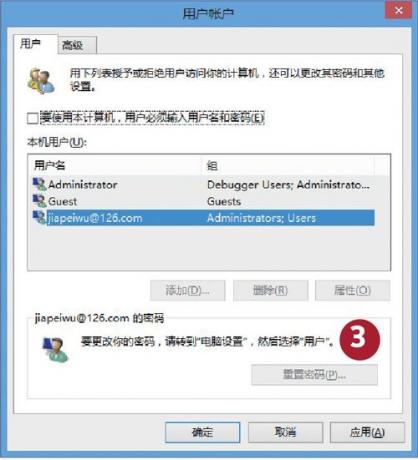
control userpasswords2
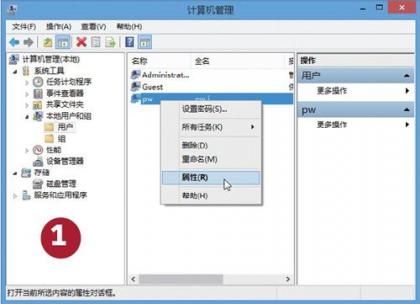
▲ 本機用戶和群組解除帳號停用
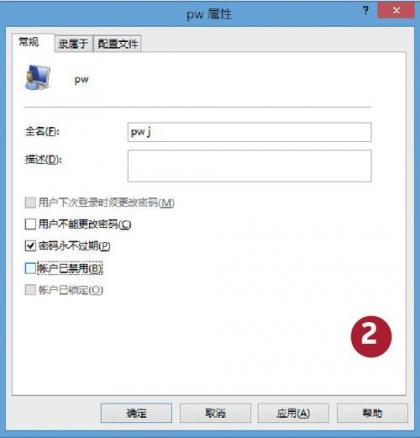
▲ 取消勾選帳戶已停用
▲ 取消勾選需輸入密碼並選取自動登入帳號
安全性提醒:自動登入會讓實體接觸電腦者直接取得帳號存取權,請僅在個人專用、物理環境安全的裝置啟用。企業/共用環境請勿使用。
Windows 8 切換 Microsoft 帳戶失敗?改用「新增帳戶」繞過限制
Windows 8.1 Modern 應用操作三大技巧:正確關閉、重新啟動、關閉自動更新、快速找到新安裝應用
Windows 8 批次設定服務啟動類型:SC 指令 + 批次檔一鍵優化
Win8 設定預設瀏覽器:控制台「預設程式」三步走,支援 Chrome/Firefox/Edge 任選
Windows 8 系統下快速設定路由器完整圖文教學
Windows 8 內建新一代反惡意軟體:Early Launch Anti-Malware 機制詳解
Windows 8 將支援更多程式語言 WinRT 平台開放多語言開發環境
Windows 8 語言管理器截圖洩露:依名稱/地區/文字系統分類,語言包預載