Windows 8 移除傳統開始選單,但提供多種快速啟動管理員 CMD 的管道,滿足不同操作習慣。
方法一:執行視窗 (傳統習慣)
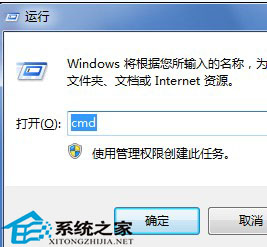
- Win+R → 輸入
cmd → 按 Ctrl+Shift+Enter (以管理員身分執行)。
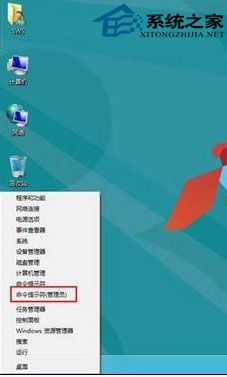
方法二:Win+X 選單 (最快、最推薦)
- 桌面按 Win+X (或開始按鈕右鍵) → 選擇「命令提示字元 (管理員)」 或 「Windows PowerShell (管理員)」。
方法三:搜尋啟動
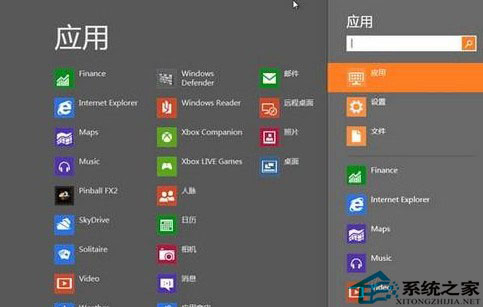
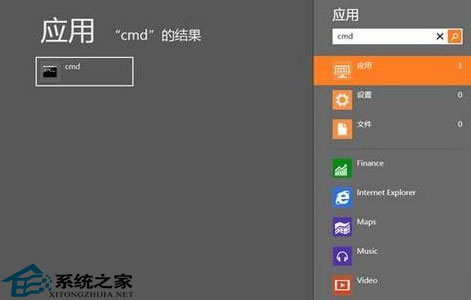
- Win+Q (或開始畫面直接輸入) → 輸入
cmd。
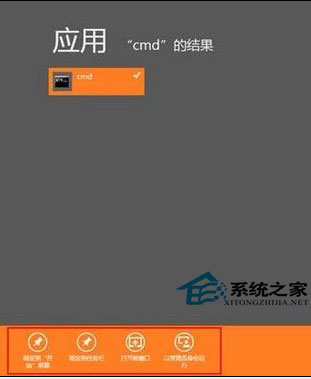
- 搜尋結果「命令提示字元」右鍵 → 選擇「以系統管理員身分執行」。
進階:設定預設為管理員模式
- 找到 CMD 捷徑 (系統路徑:
C:\Windows\System32\cmd.exe)。
- 右鍵 → 「內容」→「進階」→ 勾選「以系統管理員身分執行」。
- 之後雙擊該捷徑即自動提升權限 (UAC 仍會提示確認)。
適用情境
- 系統管理任務 (DISM、SFC、diskpart、bcdedit、netsh 等)。
- 修改受保護登錄機碼、系統檔案、服務設定。
- 網路診斷、防火牆規則、連接埠管理。