Win7 旗艦版內建 BitLocker 加密,支援 FAT/NTFS,可加密系統分區、資料分區、USB 隨身碟/行動硬碟 (BitLocker To Go)。
基本流程 (本機磁碟):
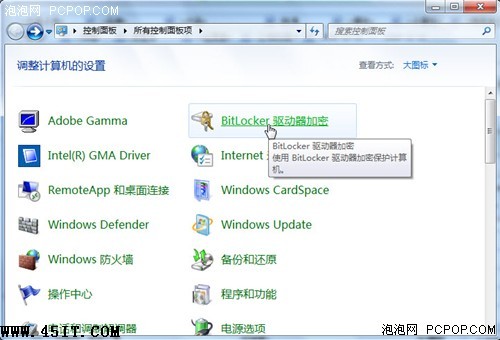
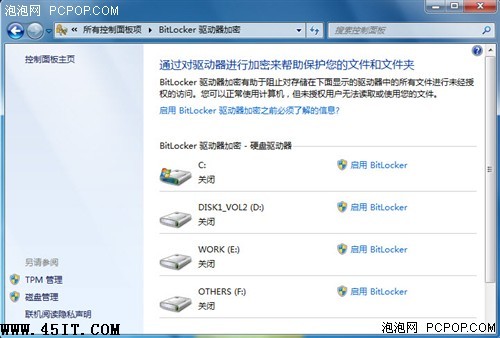
- 控制台 → BitLocker 磁碟機加密 → 選磁碟「開啟 BitLocker」
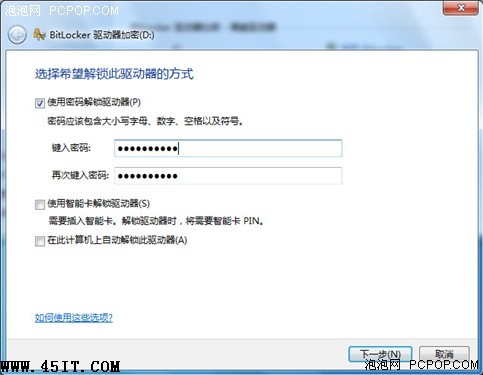
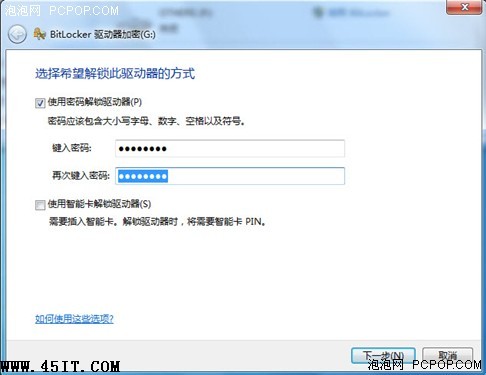
- 設定解鎖密碼 → 下一步
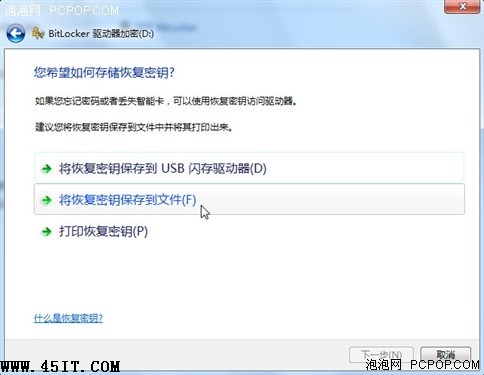
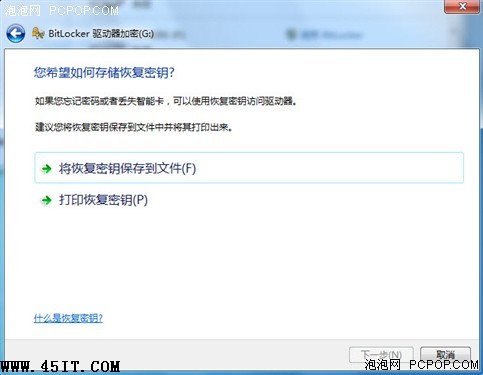
- 選擇備份復原金鑰位置 (建議存 USB 隨身碟,與加密磁碟分離)
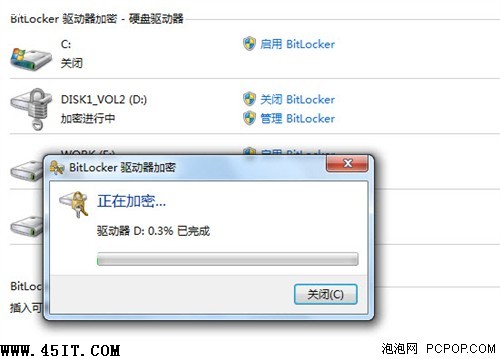
- 開始加密,完成後磁碟圖示顯示鎖頭
BitLocker To Go (USB) 加密:
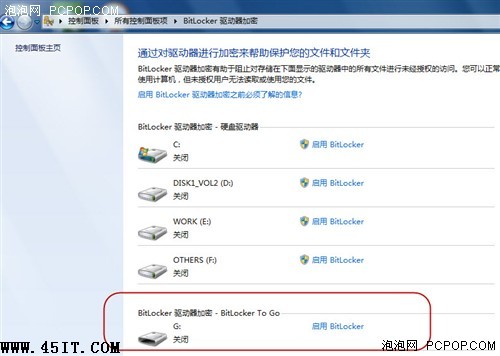
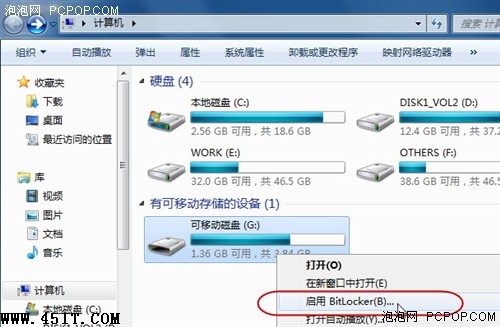
- 插入 USB → BitLocker 介面出現「BitLocker To Go」區塊
- 同樣「開啟 BitLocker」→ 設定密碼 → 備份金鑰至本機檔案 → 開始加密
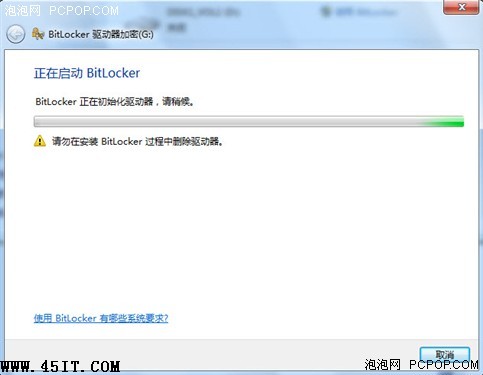
- 加密期間勿拔除 USB,以免損壞資料
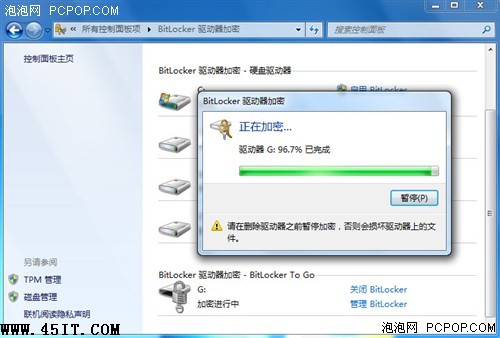
善用 BitLocker 保護機密資料,遺失裝置也不怕外洩。