Windows XP Windows 7 Windows 2003 Windows Vista Windows 綜合教學 Linux 系統教學
Windows 10 Windows 8 Windows 2008 Windows NT Windows Server 電腦軟體教學

Windows 7 系統檔案損毀怎麼修復?SFC 指令掃描修復完整教學

編輯:Win7 系統基礎知識

Windows 7 內建系統檔案檢查器 sfc.exe,可掃描並修復損毀的系統檔案,避免重裝系統。完整操作流程:

開啟命令提示字元(三種方式)

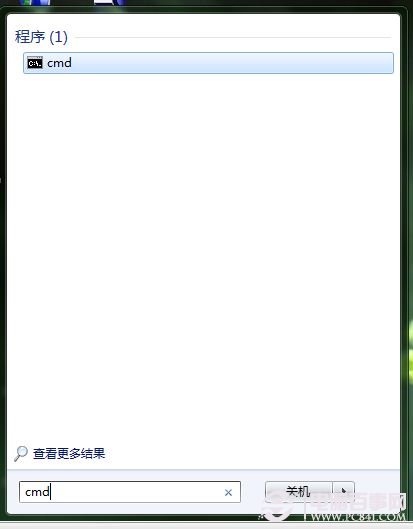
  • 「開始」搜尋 cmd → 按 Enter。
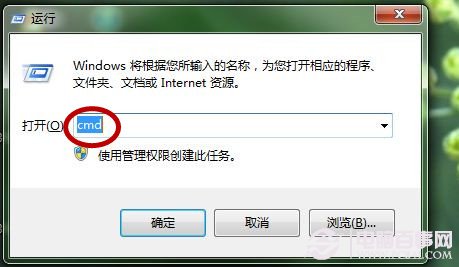
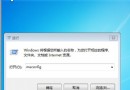
  • Win+R 輸入 cmd。
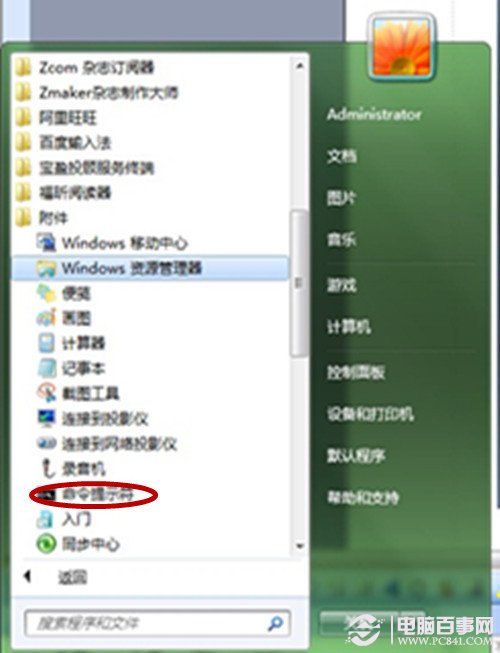
  • 「開始」→「所有程式」→「附屬應用程式」→「命令提示字元」。

搜尋 cmd

執行 cmd 附屬應用程式

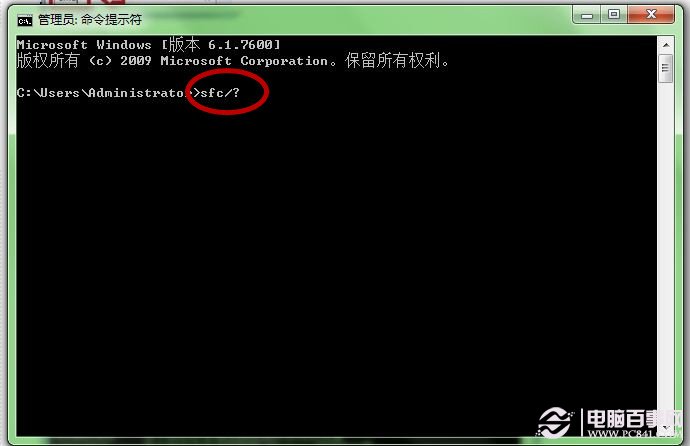
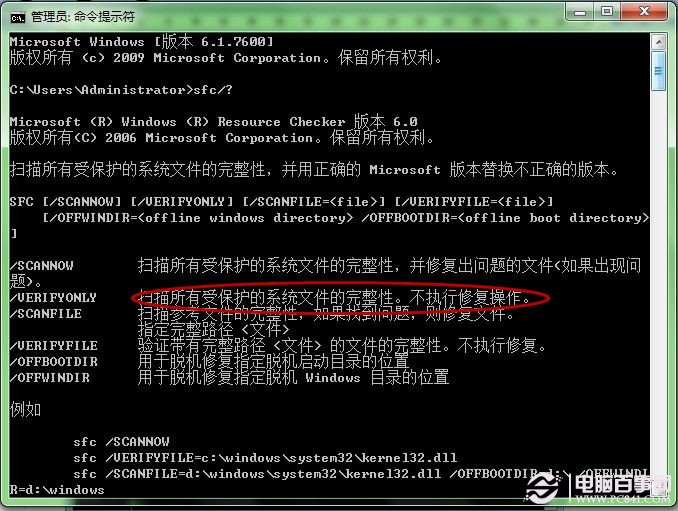
查看 SFC 參數

命令列輸入 sfc /? 按 Enter,顯示所有參數說明。

SFC 參數

參數列表

執行掃描與修復

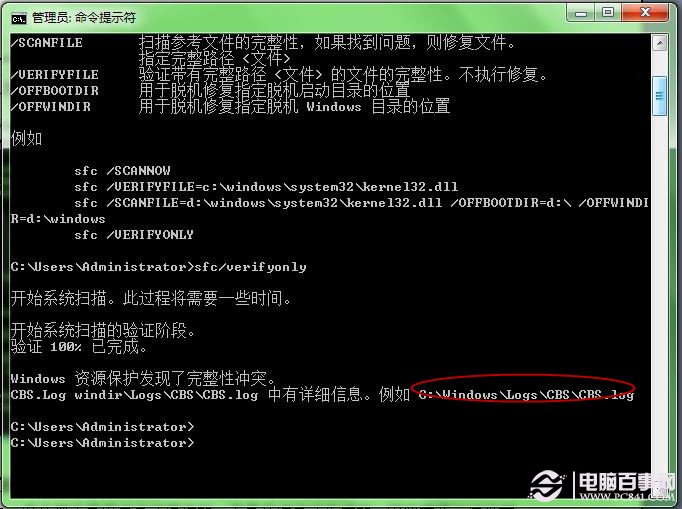
  1. 先執行 sfc /verifyonly 僅掃描不修復,查看是否發現完整性違規。
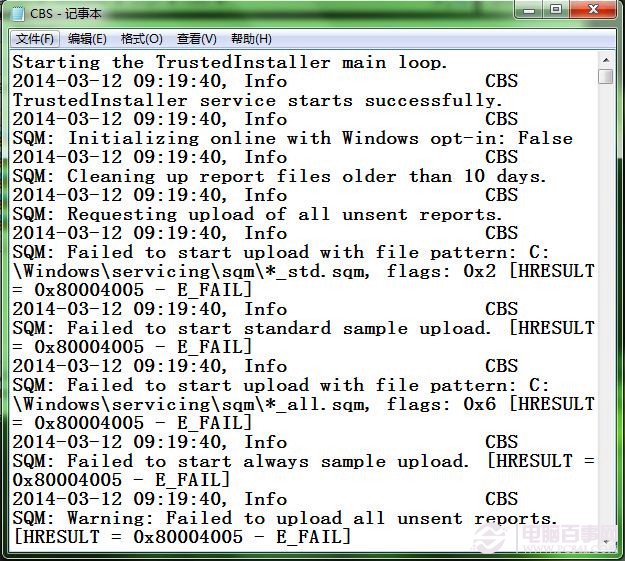
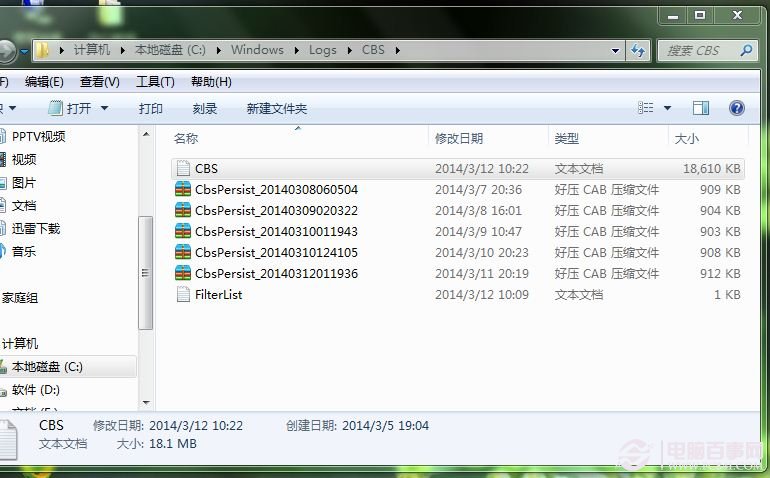
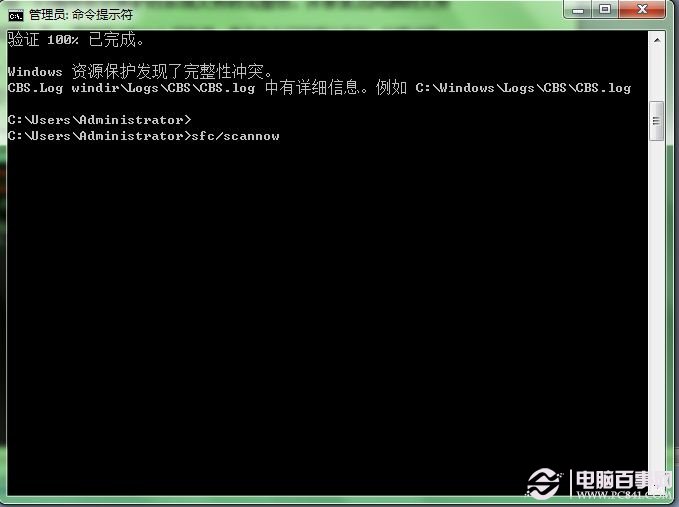
  2. 若有錯誤,系統會顯示錯誤報告路徑(通常為 C:\Windows\Logs\CBS\CBS.log),可進一步查看細節。
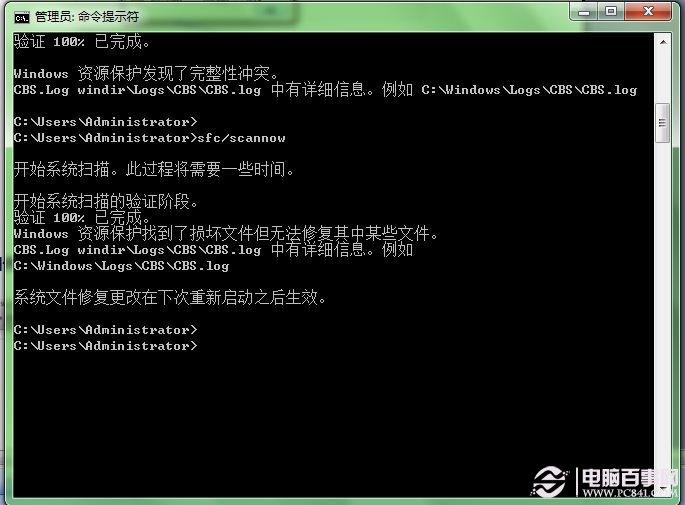
  3. 確認無誤後執行 sfc /scannow 進行掃描並自動修復損毀檔案。
  4. 等待驗證 100% 完成,重新開機使修復生效。

掃描中

發現錯誤

錯誤報告路徑

執行 scannow

修復完成

注意:若修復後出現「未啟動」提示,可能為 GHO 克隆版系統,需重新啟動授權。

Copyright © Windows教程網 All Rights Reserved