Windows XP Windows 7 Windows 2003 Windows Vista Windows 綜合教學 Linux 系統教學
Windows 10 Windows 8 Windows 2008 Windows NT Windows Server 電腦軟體教學

Hosts 檔案位置與修改教學:封鎖網站、指定 IP、去廣告實戰

編輯:Win7 系統基礎知識

Hosts 檔案是 Windows 系統的本地 DNS 解析表,修改它可實現網站封鎖、指定域名解析 IP、繞過 DNS 汙染存取 Google、去除視頻廣告等進階功能。本文詳細說明位置、編輯方法與實戰範例。

一、Hosts 檔案位置

路徑:C:\Windows\System32\drivers\etc\hosts (C 為系統盤代號,若非 C 請對應修改)
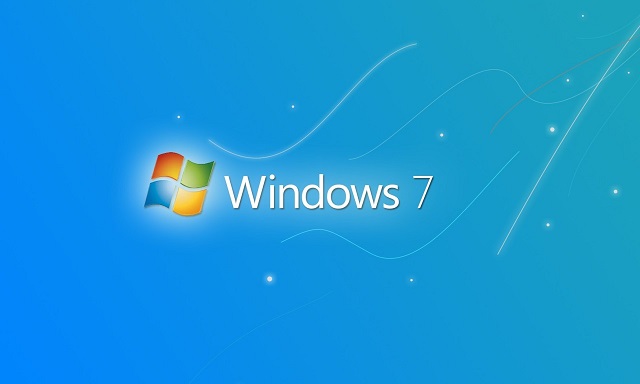
Hosts檔案位置

二、快速開啟編輯方法

  1. Win + R → 輸入 C:\Windows\System32\drivers\etc → Enter。
  2. 找到 hosts 檔案 → 右鍵 → 「開啟方式」→ 選「記事本」 (建議以「系統管理員身分執行」記事本再開啟,否則存檔會失敗)。
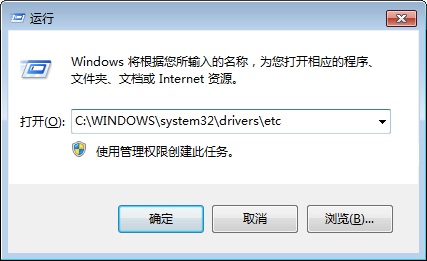
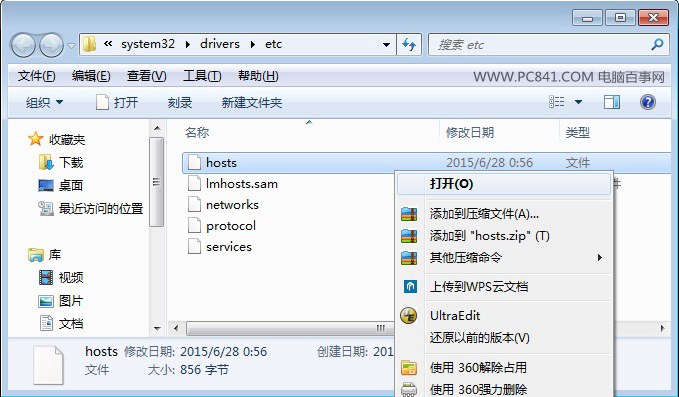
執行開啟etc資料夾

記事本開啟hosts

三、實戰範例

範例 1:指定域名解析 IP (繞過 DNS 汙染/加速存取)

# 格式:IP位址 域名
119.188.139.154 www.pc841.com
142.250.191.46 www.google.com

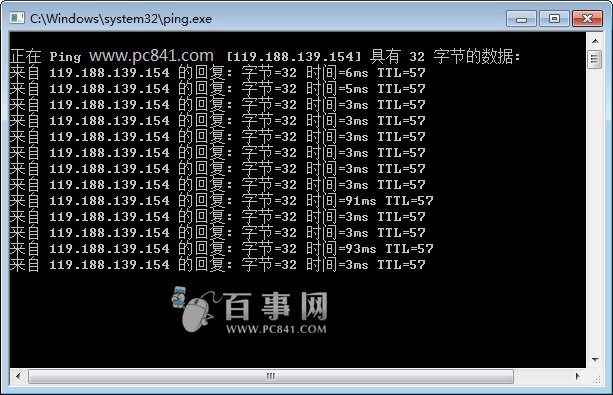
存檔後,Win+R → cmd → ping www.pc841.com 驗證解析是否為指定 IP。
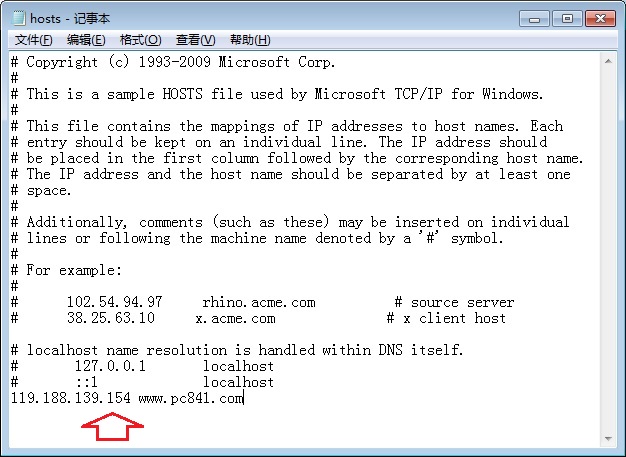
修改hosts指定IP

ping驗證

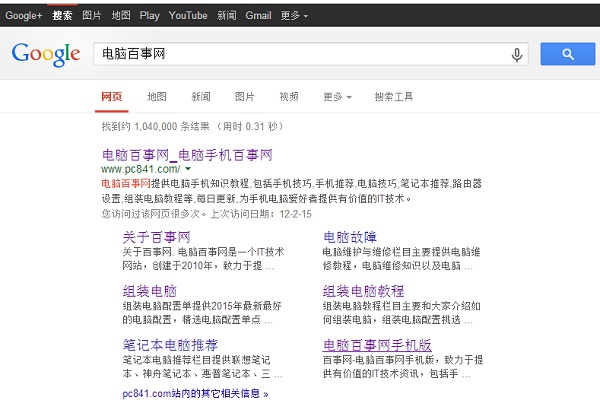
修改Hosts存取Google

範例 2:封鎖特定網站 (導向本機 127.0.0.1)

127.0.0.1 www.bad-site.com
127.0.0.1 bad-site.com
127.0.0.1 m.pc841.com

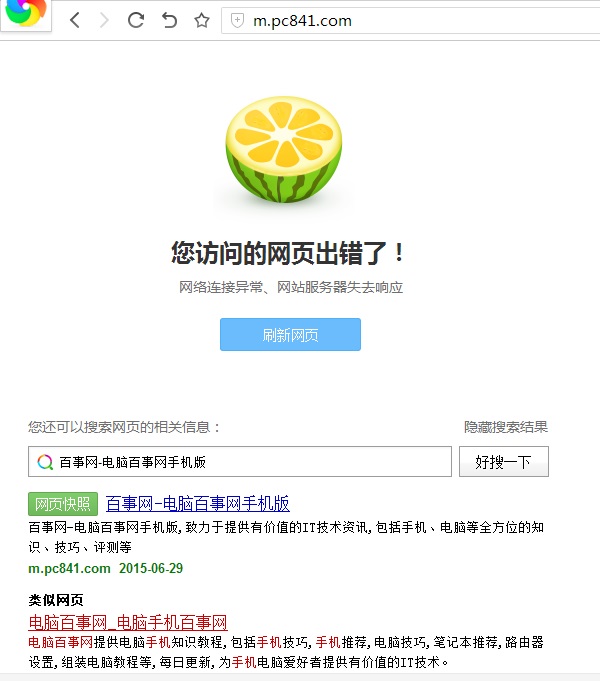
存檔後瀏覽器訪問該網站將顯示「無法連線」或本地伺服器頁面。
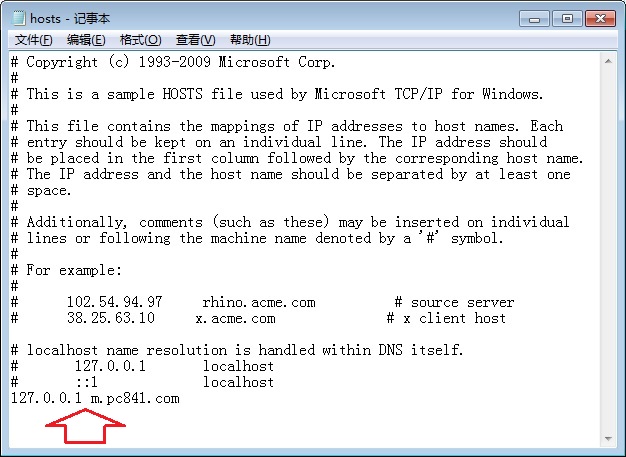
封鎖網站範例

封鎖效果驗證

範例 3:去除視頻網站廣告 (需配合廣告域名清單)

可搜尋「Hosts 去廣告規則」獲取現成清單 (如 `https://raw.githubusercontent.com/hoshsadiq/adblock-nocoin-list/master/hosts`),附加至 hosts 檔案末尾。

四、注意事項

  • 修改後需執行 ipconfig /flushdns 清除 DNS 快取即時生效。
  • 部分安全軟體 (360、火綿) 會保護 hosts 防惡意修改,需暫時關閉防護或加入信任區。
  • IPv6 環境下需同步添加 IPv6 回環位址 ::1 封鎖規則。
  • 企業環境可能透過群組原則強制覆蓋 hosts,個人修改會被還原。

五、進階工具推薦

  • HostsEditor / SwitchHosts! / BlueLife Hosts Editor:圖形介面管理、一鍵啟用停用、線上訂閱規則同步。
  • PowerToys Hosts File Editor:微軟官方工具箱內建模組。
Copyright © Windows教程網 All Rights Reserved