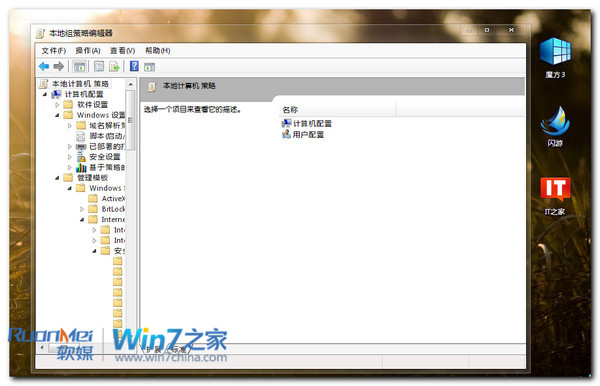
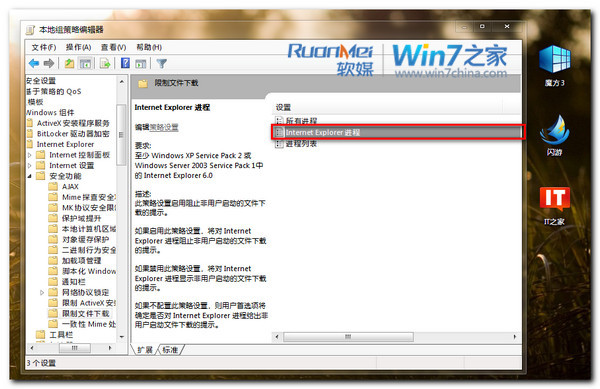
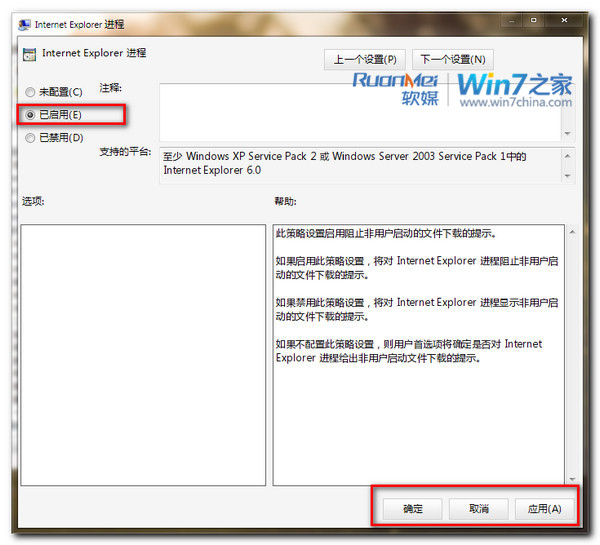
瀏覽網頁時,IE 或下載工具可能自動下載惡意程式碼至本地並執行,威脅系統安全。
gpedit.msc
設定後,IE 將不再允許網頁自動下載檔案至本地硬碟,降低惡意程式碼駭客攻擊風險。
此設定需專業版以上版本;家庭版可透過登錄機碼 HKEY_CURRENT_USER\Software\Microsoft\Windows\CurrentVersion\Internet Settings\Zones\3 中的 1806 值達成類似限制。
HKEY_CURRENT_USER\Software\Microsoft\Windows\CurrentVersion\Internet Settings\Zones\3
1806
如何正確辨別 Ghost XP 與原版 Windows XP?三大核心差異一次看懂
Windows 7 右鍵選單新增「取得管理員權限」:一鍵解決檔案存取被拒絕
Win7 找不到 FlashPaper 印表機?啟用 Print Spooler 服務後重裝 FlashPaper 即可解決
Win7 無法正常關機?透過群組原則啟用「自動終止阻礙關機的應用程式」
預裝 Win7 家用版升級安裝 MSDN 版本後的啟用方法 (金鑰+憑證)
Win7 檔案總管預設開啟指定資料夾:自訂啟動目錄提升工作效率
Win7 手動載入登錄檔:regsvr32 註冊 OCX/DLL 元件修復程式錯誤
Win7 不重開機修改 MAC 位址:裝置管理員進階屬性直接變更