PowerPoint 檔案無法開啟、提示損毀/關聯錯誤/格式不支援?四大修復法對症下藥。
方法一:PowerPoint 內建「開啟並修復」 (針對檔案損毀)
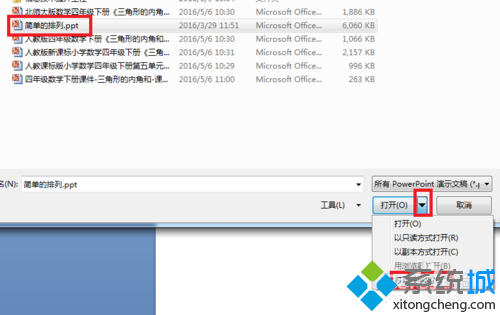
- 開啟 PowerPoint → 檔案 → 開啟。
- 選取檔案 → 點擊 開啟 旁邊小三角 → 選擇 開啟並修復。
方法二:變更檔案關聯 (針對「Windows 無法開啟此檔案」)
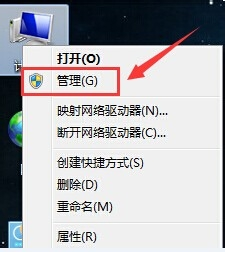
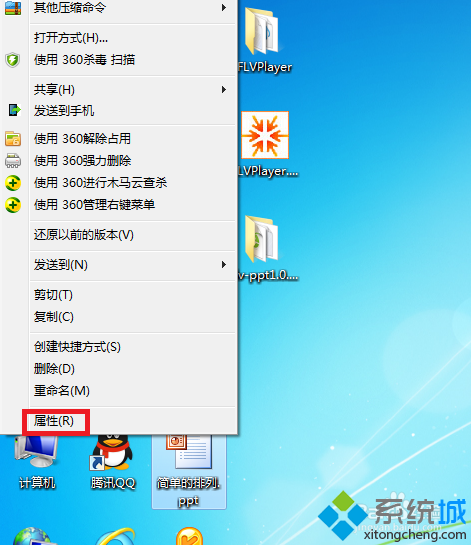
- 檔案右鍵 → 內容 → 開啟方式 → 變更。
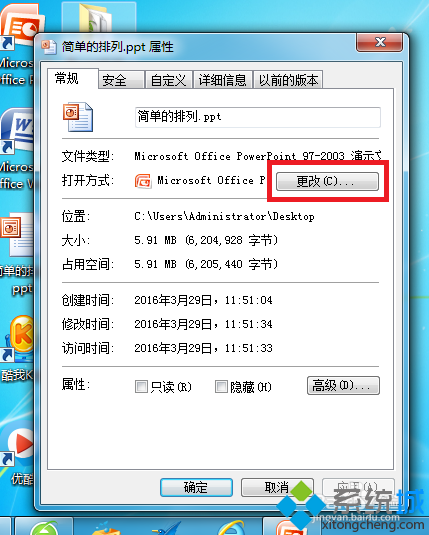
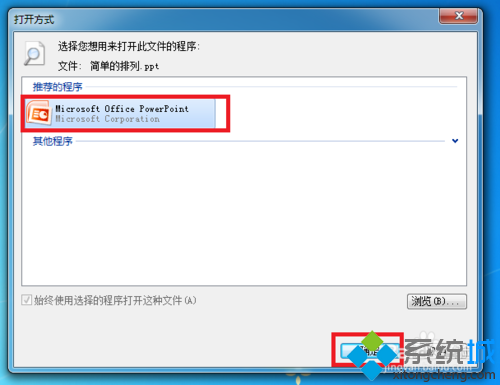
- 選擇 Microsoft Office PowerPoint → 確定。
方法三:安裝 PowerPoint 相容套件 (針對舊版 Office 無法開啟 .pptx)
- 下載安裝 Microsoft Office 相容套件 (FileFormatConverters.exe) 或完整 Office 版本。
方法四:另存新檔 (針對跨電腦/版本儲存異常)
- 若在其他電腦可開啟 → 在該電腦 另存新檔 (.pptx 或 .ppt) → 傳回原電腦開啟。
💡 進階修復工具
- 檔案嚴重損毀:嘗試 Stellar Repair for PowerPoint、Kernel for PowerPoint Repair 等專業修復軟體。
- 線上修復:OfficeRecovery Online、RepairMyPPT 上傳檔案嘗試修復 (注意機密資料)。
📋 症狀對應表
| 錯誤訊息 | 推薦方法 |
|---|
| PowerPoint 發現無法讀取的內容 / 檔案損毀 | 方法一 開啟並修復 |
| Windows 無法開啟此檔案 | 方法二 變更關聯 |
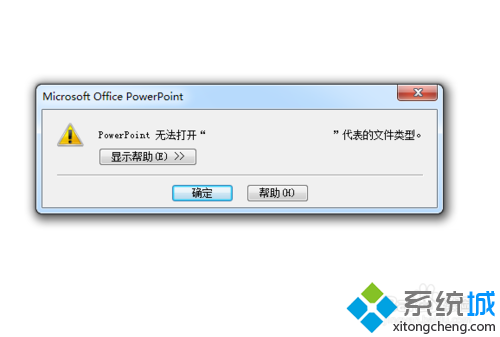
| PowerPoint 無法開啟 *.pptx 類型 | 方法三 安裝相容套件 |
| 其他電腦可開、此電腦不可開 | 方法四 另存新檔 |
對症下藥,PPT 檔案搶救成功率大增。