Windows 7 安裝 Office 2013 (或其他版本) 遇到錯誤碼 1603 (嚴重錯誤) 或 1902 (服務啟動失敗),多因系統服務未啟動或資料夾權限不足。本文提供針對性修復步驟。
現象:安裝過程中報錯 1603,升級/重裝均失效。
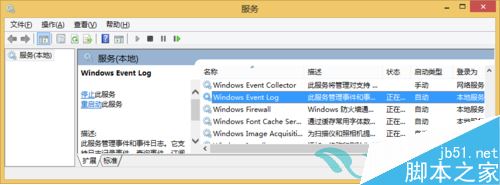
原因:Office 安裝程式需寫入事件記錄,依賴 Windows Event Log 服務。
修復步驟:
services.msc → 確定。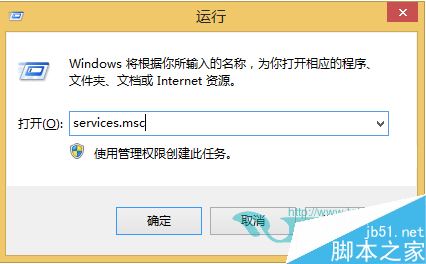
現象:提示「未能啟動服務 'Windows Font Cache Service' (FontCache)。請確認您有足夠的權限啟動系統服務。」
原因:安裝程式嘗試啟動字型快取服務,但安裝來源資料夾/目標資料夾權限不足,導致服務啟動失敗。
修復步驟:
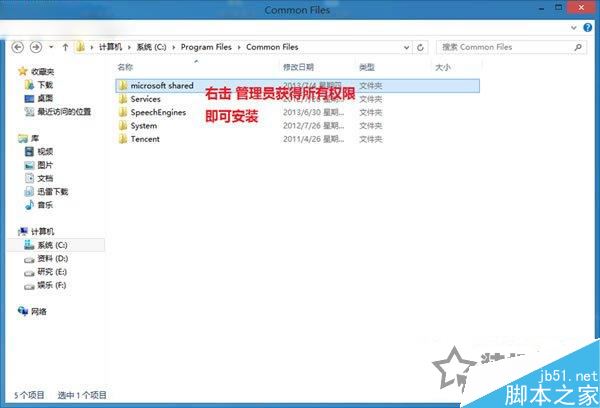
Everyone 或當前使用者 → 勾選「完全控制」→ 確定。C:\Windows\ServiceProfiles\LocalService\AppData\Local\FontCache 資料夾權限,確保 LocalService、SYSTEM、Administrators 擁有完全控制。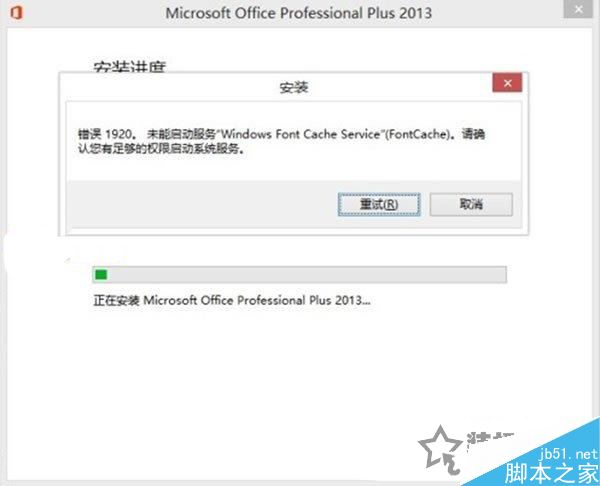
Office 2013 Uninstall Tool,搜尋「Office 2013 卸載工具」下載)。| 錯誤碼 | 常見原因 | 核心修復 |
|---|---|---|
| 1603 | Windows Event Log 服務停用/權限/磁碟空間/防毒軟體攔截 | 啟動 Event Log、關閉防毒、釋放空間 |
| 1902 | FontCache 服務權限/啟動類型/資料夾權限 | 資料夾完全控制、以管理員執行 |
| 1706 | 找不到安裝來源檔案 (網路路徑/光碟損壞) | 本地複製來源、驗證雜湊值 |
| 1935 | 組件安裝失敗 (VC++ Redist/Windows Installer 版本) | 修復 VC++、升級 Windows Installer |
針對 1603/1902 兩大高發錯誤,分別修復 Windows Event Log 與 FontCache 服務權限,配合官方卸載工具乾淨重裝,可解決 90% 以上 Windows 7 安裝 Office 失敗案例。