Windows 7 系統中 Adobe Flash Player 過舊導致網頁視頻、遊戲異常,可透過以下兩種方式升級:
方法一:啟用自動更新(推薦)
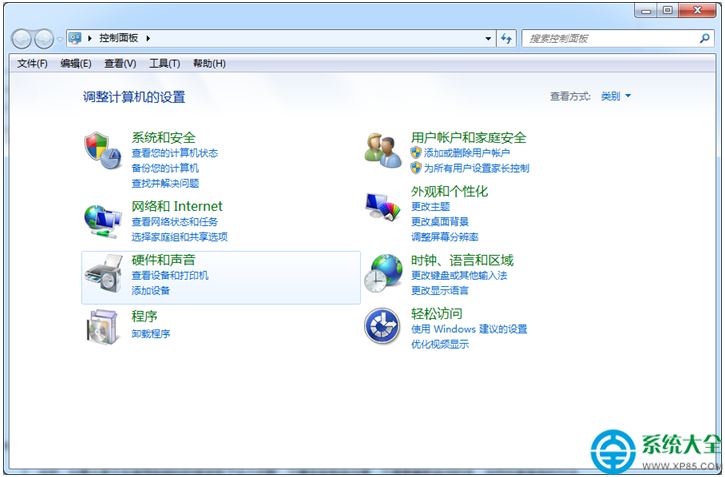
- 開啟「控制台」→「系統與安全性」→「Flash Player (32 位元)」(或直接搜尋「Flash Player」)。
- 在「Flash Player 設定管理員」視窗切換至「進階」索引標籤。
- 在「更新」區塊點擊「變更更新設定」。
- 選擇 「允許 Adobe 安裝更新 (推薦)」,點擊「確定」儲存。
- 之後有新版本時,系統開機或背景會自動下載安裝更新。
方法二:手動下載安裝最新版
- 造訪 Adobe 官網 Flash Player 下載頁面:
https://get.adobe.com/flashplayer/
- 取消勾選「選用優惠」(如 McAfee 掃描工具),點擊「立即下載」。
- 下載完成後執行安裝程式,依指示完成安裝。
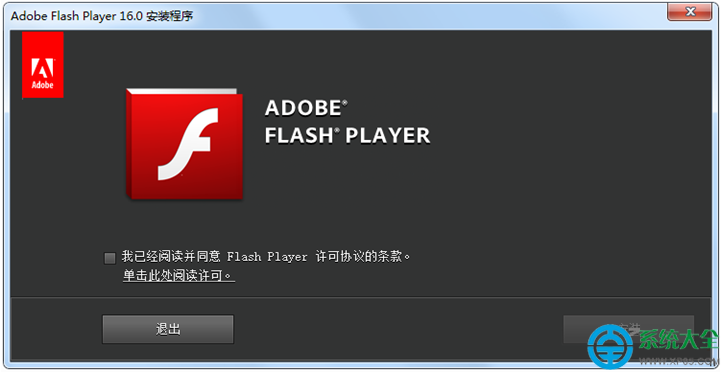
重要提醒:Adobe 已於 2020 年 12 月 31 日停止支援 Flash Player,並封殺所有版本執行。現代瀏覽器(Chrome、Edge、Firefox)已內建移除 Flash 支援。建議完全移除 Flash Player,改用 HTML5 等現代技術替代。