Windows XP Windows 7 Windows 2003 Windows Vista Windows 綜合教學 Linux 系統教學
Windows 10 Windows 8 Windows 2008 Windows NT Windows Server 電腦軟體教學

Win7 升級 Win10 後搜尋失效?刪除註冊表損毀鍵值一鍵修復

編輯:Win7 系統應用技巧

從 Win7 就地升級 Win10 後,開始選單/工作列搜尋列點擊無反應、輸入關鍵字不顯示結果,是已知升級遺留 Bug。原因是註冊表殘留錯誤的 `FolderTypes` 鍵值 `{00000000-0000-0000-0000-000000000000}`,刪除即可修復。

修復步驟

  1. Win+R → `regedit` → Enter
  2. 定位並刪除以下兩個路徑下的 {00000000-0000-0000-0000-000000000000} 資料夾(右鍵 → 刪除):

32 位/64 位通用路徑:

HKEY_LOCAL_MACHINE\SOFTWARE\Microsoft\Windows\CurrentVersion\Explorer\FolderTypes\{ef87b4cb-f2ce-4785-8658-4ca6c63e38c6}\TopViews\{00000000-0000-0000-0000-000000000000}

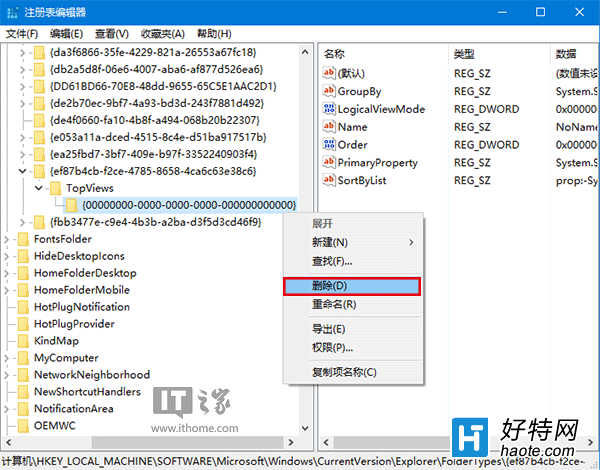
64 位系統額外路徑:

HKEY_LOCAL_MACHINE\SOFTWARE\WOW6432Node\Microsoft\Windows\CurrentVersion\Explorer\FolderTypes\{ef87b4cb-f2ce-4785-8658-4ca6c63e38c6}\TopViews\{00000000-0000-0000-0000-000000000000}
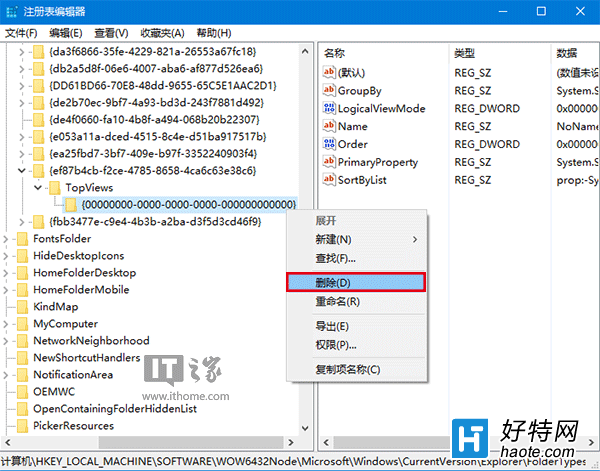
  1. 重新開機,搜尋功能即可恢復正常。
  2. 搜尋失效畫面 註冊表路徑1 註冊表路徑2

原理說明

升級過程中,舊版 Shell 擴充介面註冊未正確移除,導致 `FolderTypes` 下產生空 GUID 鍵值,干擾 `SearchIndexer` / `StartMenuExperienceHost` 讀取正確的視圖定義。刪除空鍵值讓系統重建預設值即可修復。

替代方案(不想動註冊表)

  • 重建搜尋索引:「控制台」→「索引選項」→「進階」→「重建」
  • PowerShell 重新註冊 AppX:
    `Get-AppXPackage -AllUsers | Foreach {Add-AppxPackage -DisableDevelopmentMode -Register "$($_.InstallLocation)\AppXManifest.xml"}`
  • 執行 `sfc /scannow` 修復系統檔案

注意

  • 操作前建議匯出註冊表備份(檔案 → 匯出)
  • 僅刪除指定的空 GUID 資料夾,勿誤刪上層 `{ef87b4cb...}` 鍵值
  • 此問題在 Win10 1809 以降版本較少見,微軟已透過累積更新修正
Copyright © Windows教程網 All Rights Reserved