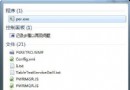
Windows 7 桌面上的 Internet Explorer 圖示不見了,無法從「開始」選單拖曳建立捷徑?提供兩種找回方法:圖形介面簡單法與註冊表徹底恢復法,任選其一即可。
Internet Explorer。Windows Registry Editor Version 5.00
[HKEY_LOCAL_MACHINE\SOFTWARE\Microsoft\Windows\CurrentVersion\Explorer\Desktop\NameSpace\{00000000-0000-0000-0000-100000000001}]
@="Internet Explorer"
[HKEY_CLASSES_ROOT\CLSID\{00000000-0000-0000-0000-100000000001}]
@="Internet Explorer"
[HKEY_CLASSES_ROOT\CLSID\{00000000-0000-0000-0000-100000000001}\DefaultIcon]
@="C:\\Windows\\System32\\ieframe.dll,-190"
[HKEY_CLASSES_ROOT\CLSID\{00000000-0000-0000-0000-100000000001}\shell]
@=""
[HKEY_CLASSES_ROOT\CLSID\{00000000-0000-0000-0000-100000000001}\shell\NoAddOns]
@="無附加元件 (&N)"
[HKEY_CLASSES_ROOT\CLSID\{00000000-0000-0000-0000-100000000001}\shell\NoAddOns\Command]
@="\"C:\\Program Files\\Internet Explorer\\iexplore.exe\" -extoff"
[HKEY_CLASSES_ROOT\CLSID\{00000000-0000-0000-0000-100000000001}\shell\Open]
@="開啟首頁 (&H)"
[HKEY_CLASSES_ROOT\CLSID\{00000000-0000-0000-0000-100000000001}\shell\Open\Command]
@="\"C:\\Program Files\\Internet Explorer\\iexplore.exe\""
[HKEY_CLASSES_ROOT\CLSID\{00000000-0000-0000-0000-100000000001}\shell\Set]
@="屬性 (&R)"
[HKEY_CLASSES_ROOT\CLSID\{00000000-0000-0000-0000-100000000001}\shell\Set\Command]
@="\"C:\\Windows\\System32\\rundll32.exe\" C:\\Windows\\System32\\shell32.dll,Control_RunDLL C:\\Windows\\System32\\inetcpl.cpl"
IE_Desktop_Icon.reg(編碼選 ANSI 或 UTF-8)。