Windows XP Windows 7 Windows 2003 Windows Vista Windows 綜合教學 Linux 系統教學
Windows 10 Windows 8 Windows 2008 Windows NT Windows Server 電腦軟體教學

Windows 7 開啟攝影機失敗「無法列示篩選器圖像」修復教學

編輯:Windows 7 系統介紹

註冊缺失的 DLL 檔案恢復攝影機功能

Ghost 版 Windows 常精簡移除攝影機相關 DLL,導致開啟攝影機提示「無法列示篩選器圖像」。

方法一:註冊核心 DLL

  1. 按 Win + R 輸入 cmd 開啟命令提示字元(管理員)。
  2. 依序執行以下指令:
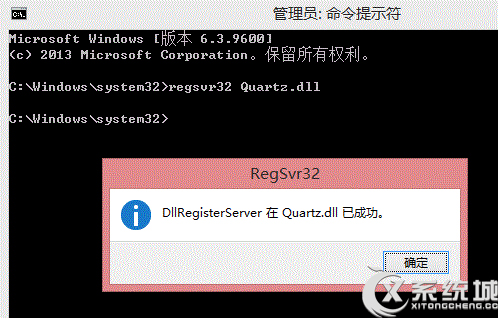
    regsvr32 Quartz.dll
    regsvr32 Proppage.dll
    regsvr32 directSpy.dll
  3. 註冊 DLL 指令
  4. 重新開機測試。

方法二:補齊遺失 DLL 檔案

若提示找不到模組,需下載 Proppage.dll、directSpy.dll、Quartz.dll 三個檔案,複製到:

  • 32 位元系統:C:\Windows\System32
  • 64 位元系統:C:\Windows\SysWOW64

再重新執行方法一的註冊指令。

方法三:補充 msvfw32.dll

若仍失效,可能缺少 msvfw32.dll(AVI 影片擷取介面),同樣複製至上述對應資料夾後註冊。

方法四:排查第三方軟體衝突

檢查是否有其他可呼叫攝影機的軟體(如視訊軟體、監控軟體)佔用資源,嘗試停用或移除測試。

若以上皆無效,建議重裝完整版 Windows 系統。

Copyright © Windows教程網 All Rights Reserved