Windows XP Windows 7 Windows 2003 Windows Vista Windows 綜合教學 Linux 系統教學
Windows 10 Windows 8 Windows 2008 Windows NT Windows Server 電腦軟體教學

Win7 USB 隨身碟插入不自動播放?啟用 ShellHWDetection 服務解決

編輯:Windows 7 系統介紹

Windows 7 插入 USB 隨身碟/光碟/手機時不彈出自動播放視窗、不自動開啟資料夾,通常是「Shell Hardware Detection」服務 (ShellHWDetection) 被停用或設為手動啟動。啟用此服務並設為自動,即可恢復自動播放功能。

操作步驟

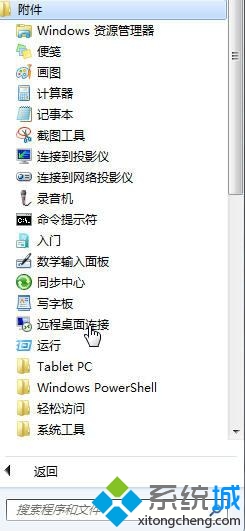
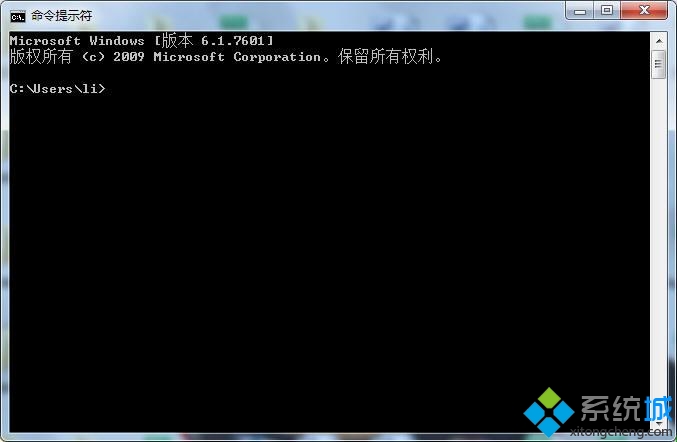
  1. 按 Win + R 輸入 cmd,以系統管理員身分開啟命令提示字元 (右鍵 cmd.exe → 「以系統管理員身分執行」)。
  2. 執行指令啟動服務:
    net start ShellHWDetection
  3. 設定為自動啟動 (下次開機生效):
    sc config ShellHWDetection start= auto
  4. 重新開機驗證。
命令提示字元 net start ShellHWDetection 確認服務啟動

圖形介面替代操作

  1. Win + R → services.msc 開啟服務管理單元。
  2. 找到「Shell Hardware Detection」。
  3. 按兩下 → 「啟動類型」選「自動」→ 「啟動」按鈕 → 「確定」。

相關服務依賴關係

若 ShellHWDetection 無法啟動,檢查上述依賴服務是否正常。

自動播放設定檢查

服務正常但仍不自動播放,請檢查:
控制台 → 「自動播放」→ 勾選「對所有媒體和裝置使用自動播放」→ 各裝置類型選擇預設動作 (如「開啟資料夾以檢視檔案」)。

常見導致服務停用原因

  • 優化軟體 (如 360 優化大師、Advanced SystemCare) 停用「非必要服務」。
  • 病毒/惡意軟體破壞服務設定。
  • 手動執行 msconfig / services.msc 誤操作。
  • Windows Update 更新後服務狀態重置異常。
Copyright © Windows教程網 All Rights Reserved
服務名稱顯示名稱功能依賴
ShellHWDetectionShell Hardware Detection自動播放、裝置偵測通知無
WPDBusEnumWPD Bus EnumeratorMTP/PTP 裝置 (手機/相機) 列舉ShellHWDetection
WUDFSvcWindows Driver Foundation - User-mode Driver Framework用戶模式驅動框架WPDBusEnum