問題
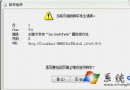
特定信任軟體 (如管理工具、備份軟體) 每次啟動都彈出 UAC 同意提示,不想完全關閉 UAC 降低安全性。
解決:Microsoft Application Compatibility Toolkit (ACT) 建立相容性修正
- 下載安裝 Microsoft ACT (含 32/64 位元版)。
- 以管理員身分執行「Compatibility Administrator (32-bit/64-bit)」(依目標程式位元選擇)。
- 右鍵「Custom Databases」→ 「New Database」→ 「Create New」→ 「Application Fix」。
- 「Name of the program to be fixed」與「Vendor name」輸入識別名稱 → 「Browse」選擇目標
.exe 完整路徑 → 下一步。
- 「Additional compatibility modes」勾選 RunAsAdmin 與 RunAsInvoker 兩項 → 連續兩次下一步 → 完成。
- 工具列點「Save」→ 「Database Name」輸入名稱 → 確定 → 再存一次檔案 (.sdb)。
- 選單「File」→ 「Install」將 .sdb 安裝至系統 UAC 白名單 → 提示成功。
- 測試執行該程式,不再彈出 UAC 提示。
適用範圍
Windows 2000 SP4 / XP SP3 / Vista / 7 / Server 2003 SP1 / Server 2008 / Server 2008 R2。
注意
- 僅對指定 .exe 生效,不影響其他程式 UAC 保護。
- 修改相容性資料庫屬系統級操作,建議建立還原點。
- 若程式更新更換 .exe 路徑/簽章,需重新建立修正。