將記事本加入桌面/資料夾背景右鍵選單 (新建記事本) 與所有檔案右鍵選單 (用記事本開啟),透過登錄部署,無需第三方工具。
regedit。HKEY_CLASSES_ROOT\Directory\Background\shell。C:\Windows\System32\notepad.exe → 確定。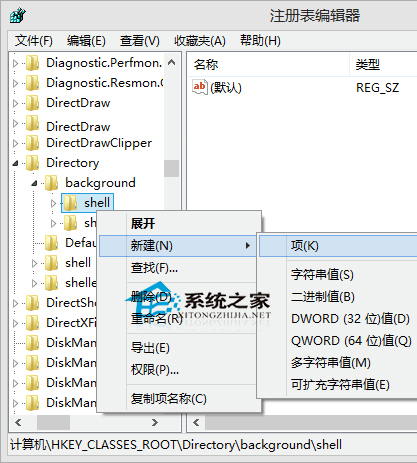
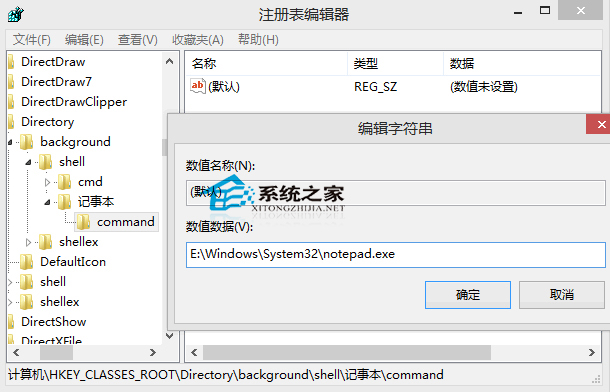
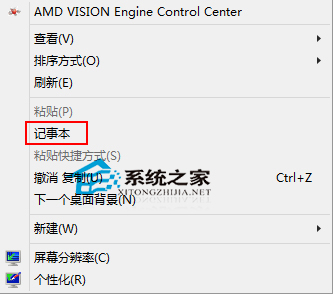
HKEY_CLASSES_ROOT\*\shell (不存在則新增)。notepad.exe %1 (注意空格)。Windows Registry Editor Version 5.00
[HKEY_CLASSES_ROOT\*\shell\notepad]
@="用記事本開啟"
[HKEY_CLASSES_ROOT\*\shell\notepad\command]
@="notepad.exe %1"
另存為 add_notepad_context.reg → 雙擊匯入 → 確定。
登錄編輯器刪除對應金鑰 (HKEY_CLASSES_ROOT\Directory\Background\shell\記事本、HKEY_CLASSES_ROOT\*\shell\notepad) 即可恢復原狀。
右鍵選單擴充是 Windows 進階使用者必備技能,記事本、VS Code、PowerShell、Terminal 皆可同理部署。