執行未簽名/低信譽應用程式時,Windows SmartScreen 會彈出「Windows 已保護你的電腦」阻擋執行。若確信來源可靠,可透過控制台永久關閉此篩選器。
操作步驟
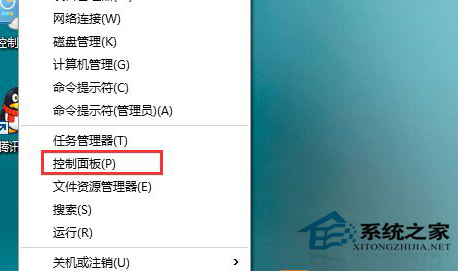
- 右鍵「開始」 → 「控制台」 (或 Win+X → 控制台)。
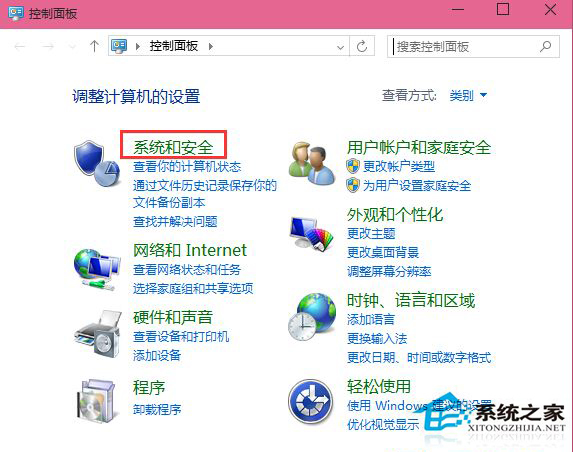
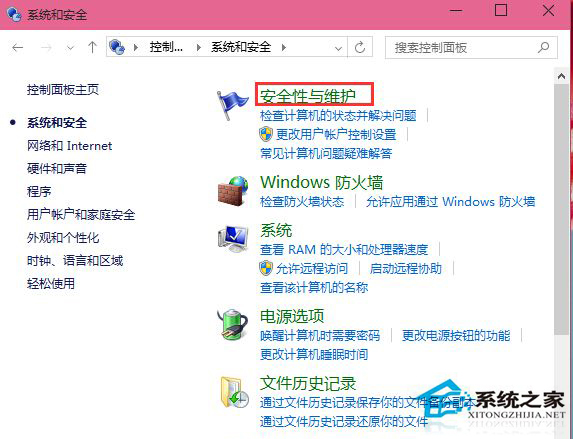
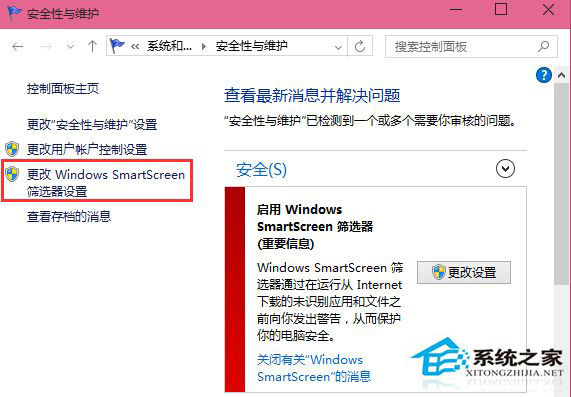
- 「系統和安全性」→「安全性與維護」。
- 左側「變更 Windows SmartScreen 篩選器設定」。
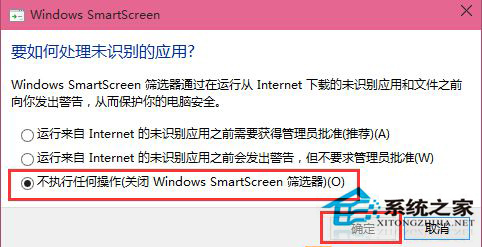
- 選擇「不執行任何動作 (關閉 Windows SmartScreen 篩選器)」→ 確定。
風險提示
- 關閉後將不再攔截惡意/未簽名程式,請確保僅執行受信任來源軟體。
- 企業環境建議保持啟用,透過群組原則管理例外清單。
- Edge/IE 瀏覽器下載攔截獨立於此設定,需在瀏覽器設定中調整。
替代:單一檔案解除封鎖
右鍵檔案 → 「內容」→「一般」索引標籤底部「解除封鎖」→ 套用,僅針對該檔案放行,系統防護維持啟用,更安全。
視風險承受度選擇全域關閉或單檔解除封鎖,掌握執行權主動權。