Win10 將預設應用程式管理集中於設定介面,修改預設瀏覽器不再需在各瀏覽器內部設定。
操作步驟
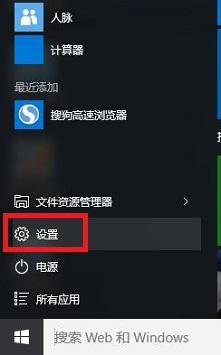
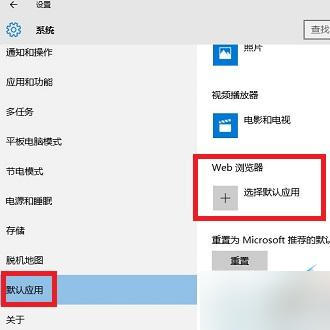
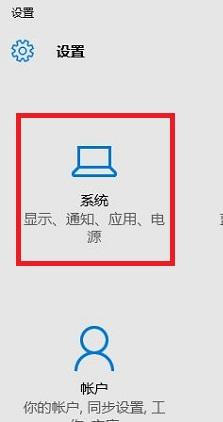
- Win + I 開啟「設定」 → 「系統」。
- 左側選單選擇「預設應用程式」。
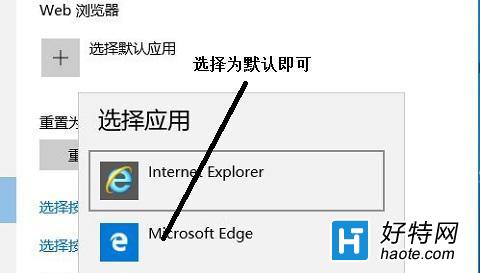
- 右側找到「網頁瀏覽器」,點選目前圖示 (可能顯示 Edge/Chrome/IE 圖示)。
- 彈出清單選擇 「Microsoft Edge」 (或其他欲設為預設的瀏覽器)。
- 完成,連結點擊即以 Edge 開啟。
補充說明
- 同介面可設定:郵件、地圖、音樂播放器、相片檢視器、影片播放器等預設應用。
- 若安裝瀏覽器後未出現在清單,請重新啟動「設定」App 或重開機重整快取。
- 企業環境可透過群組原則/MDM 鎖定預設瀏覽器 (
Computer Configuration\Administrative Templates\Windows Components\File Explorer\Set a default associations configuration file)。
一站式設定,告別各瀏覽器搶預設的彈窗大戰。